Setup guide

Link Wireless Lock to Vending Kiosk

In this step-by-step tutorial, you'll learn how to connect and configure ShopXpert Automatic Lock with our vending kiosk. This guide will walk you through pairing the lock with your device, integrating it within the app, and setting up automated unlocking.
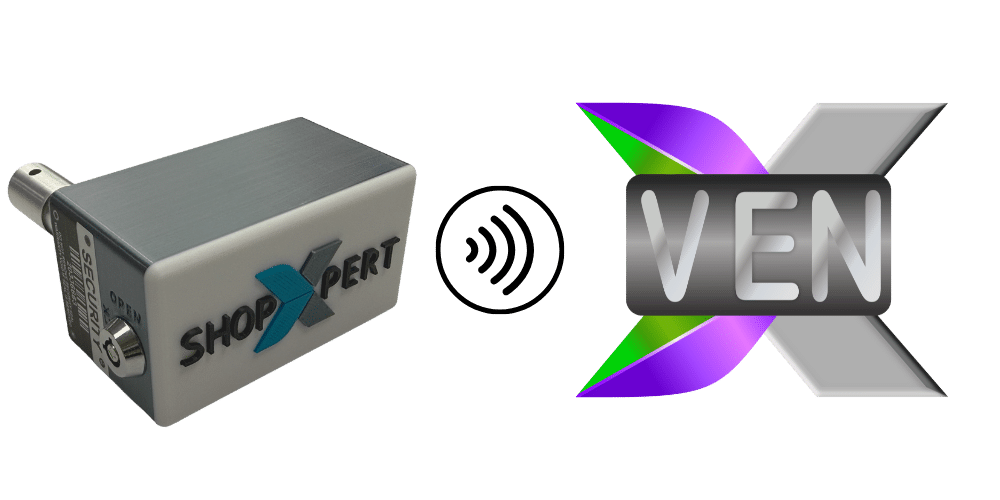
ShopXpert wireless lock and vending kiosk
Setup

Let's set it up

Integrate Automatic Lock with ShopXpert Vending Kiosk

Step 1
  • Make sure your device is on & Lock is connected to power.
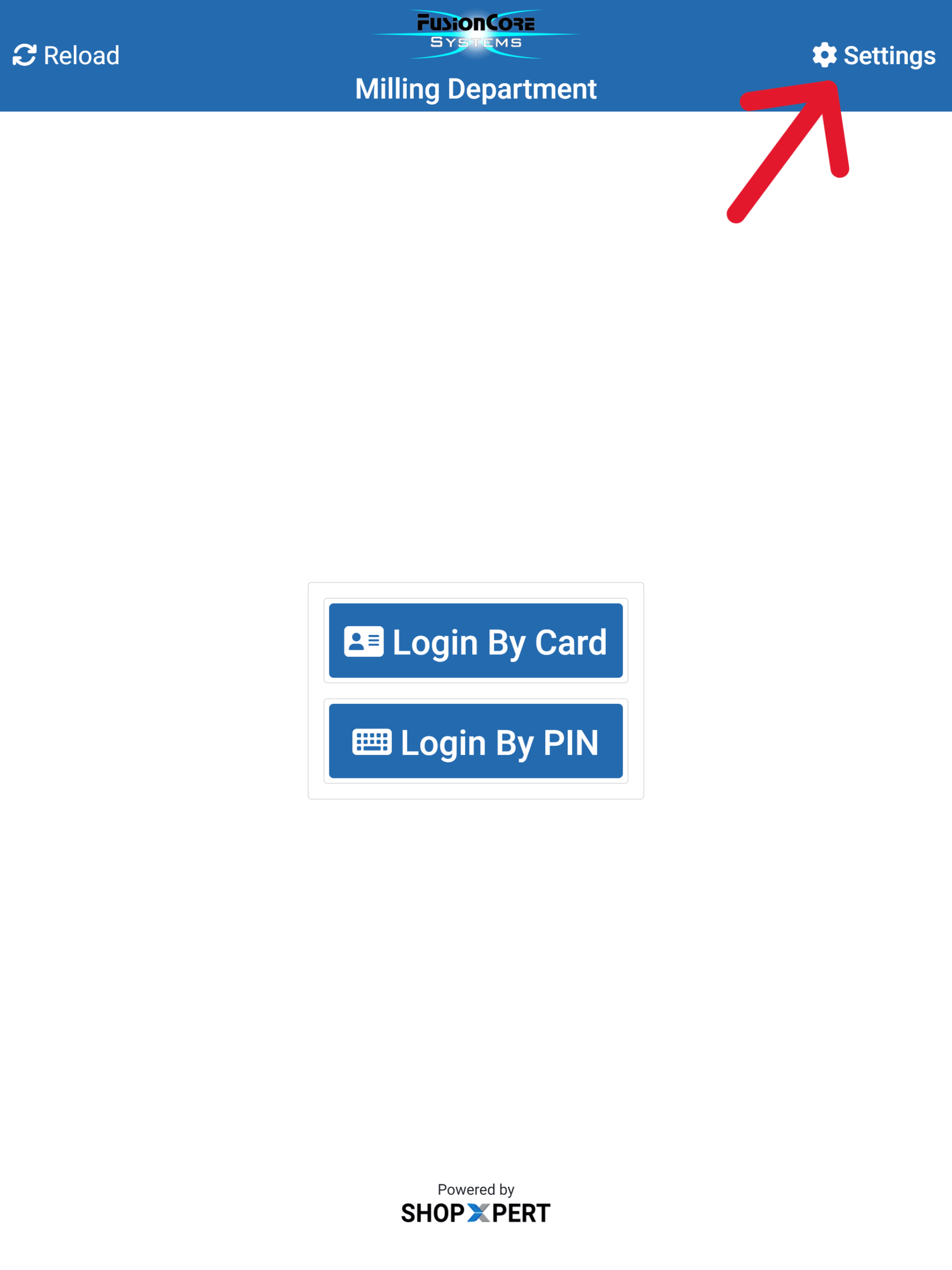
  • Go to vending.shopxpert.com
  • Access your vending device
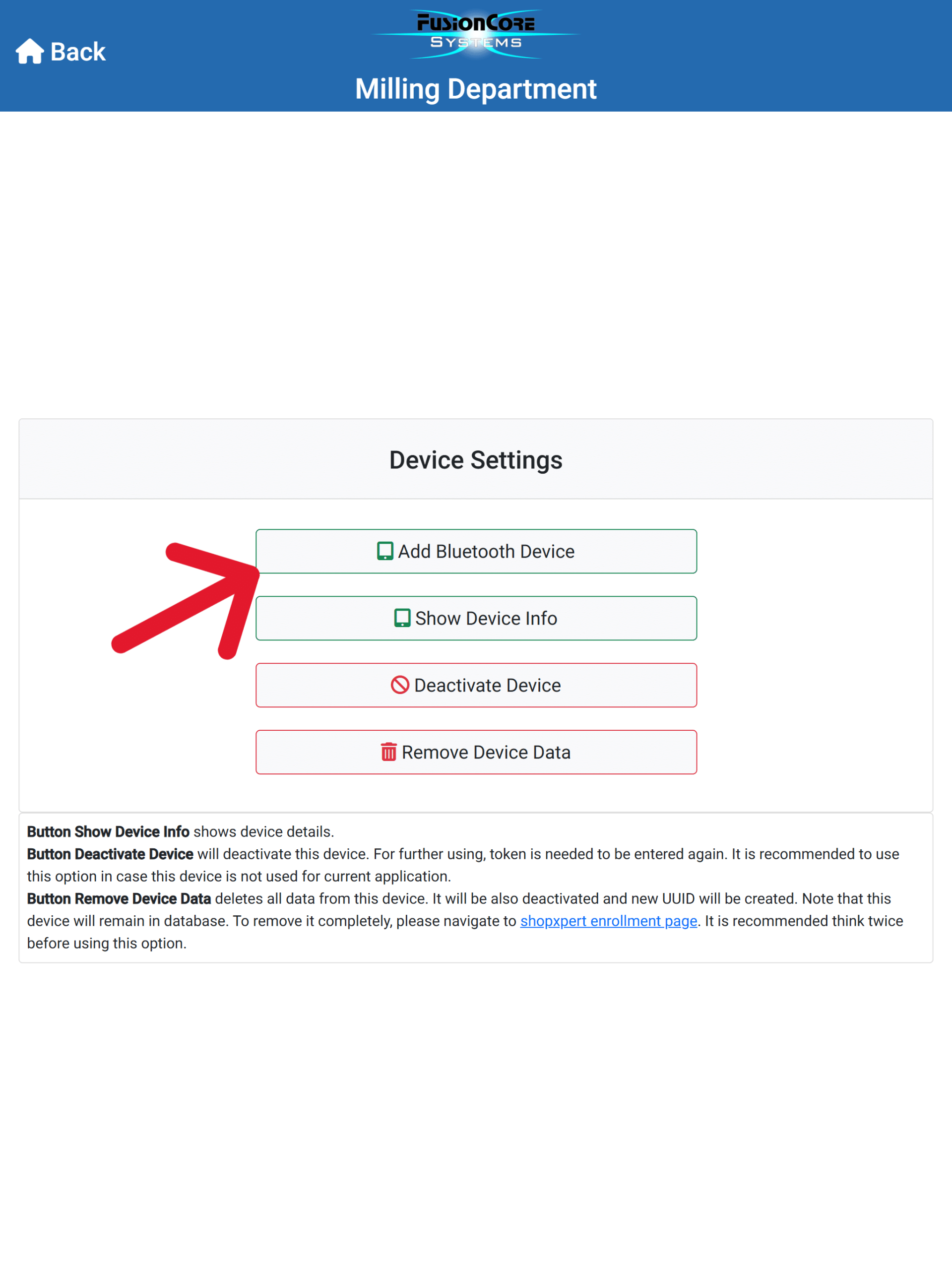
  • Go to Settings
  • Add Bluetooth Device
Vending kiosk login screenVending device settings
Step 2
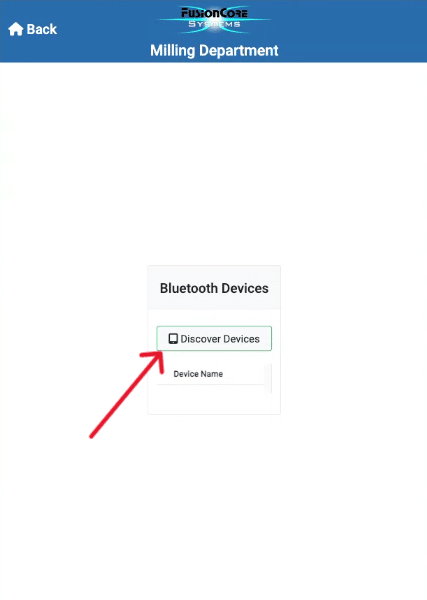
  • Click on Discover Devices
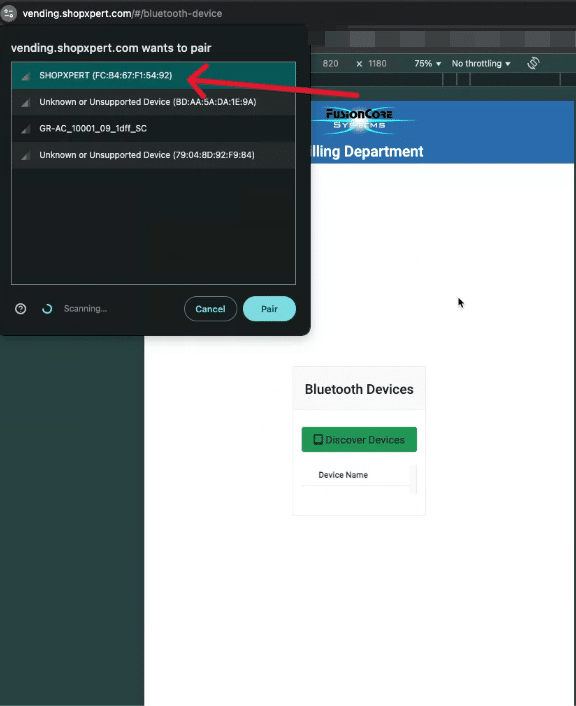
  • A popup will open asking to pair with available Bluetooth Devices
  • Pair with the device named SHOPXPERT
Bluetooth Devices, Discover DevicesPair with the SHOPXPERT device
Step 3
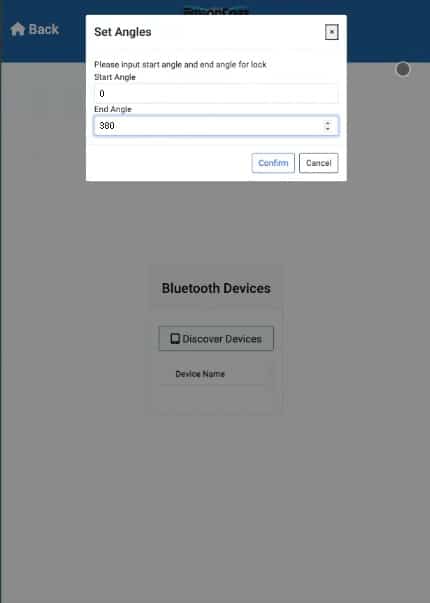
  • Set the Start Angle to 0
  • Set the End Angle to 380
  • Click Confirm
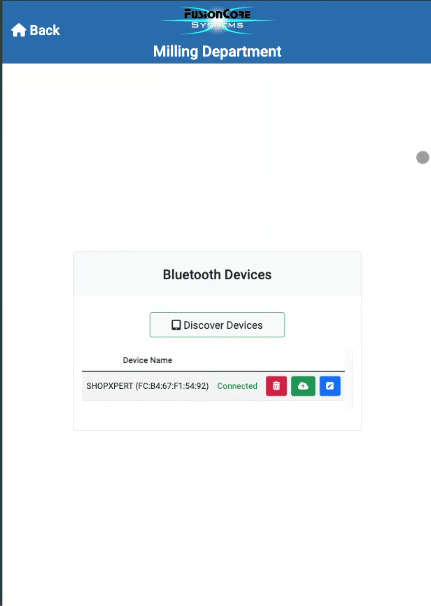
  • Lock is now connected
Set Angles: Start Angle 0, End Angle 380Lock connected
Step 4
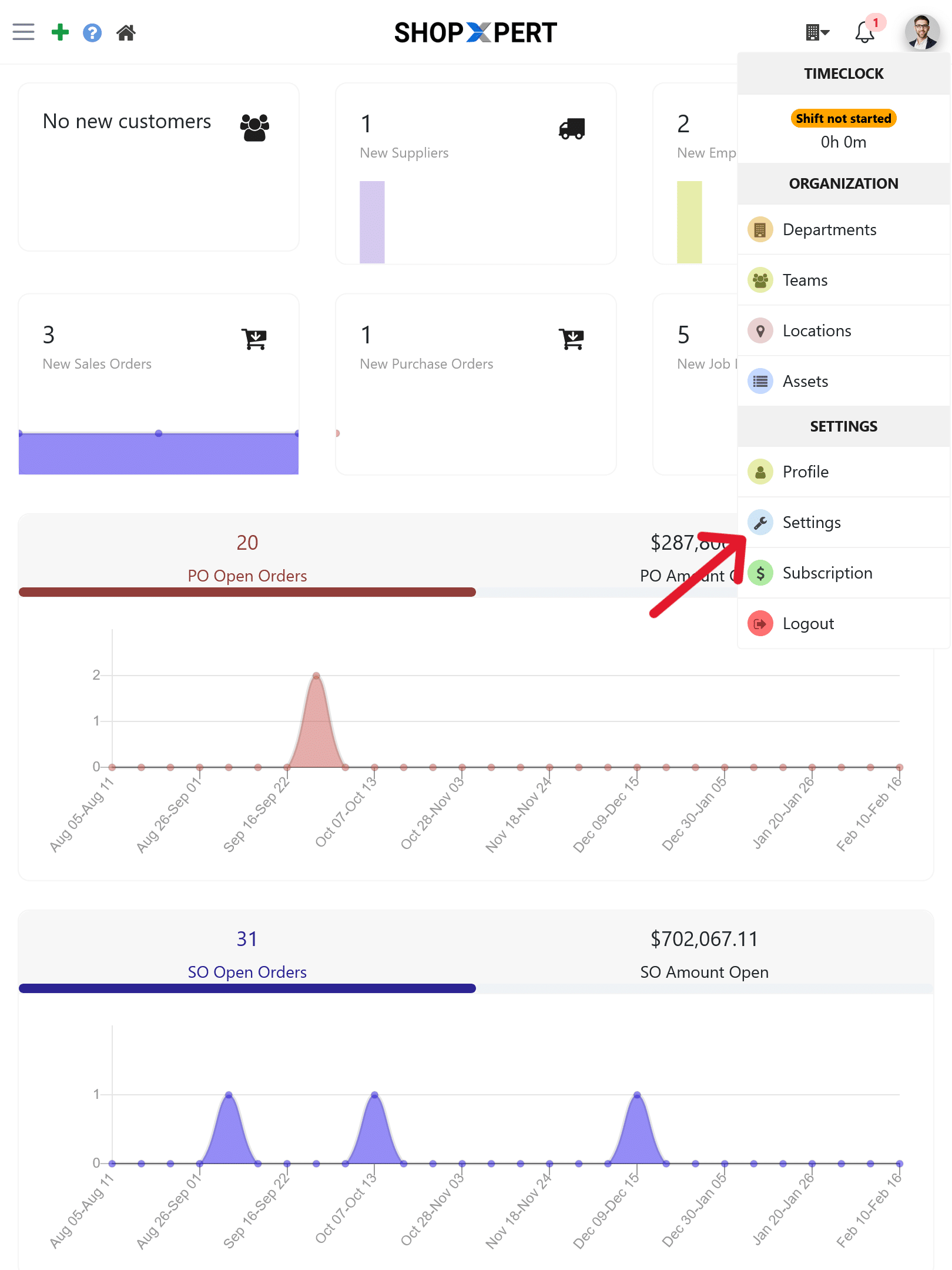
  • Go to app.shopxpert.com
  • Go to Settings --> Device Enrollment
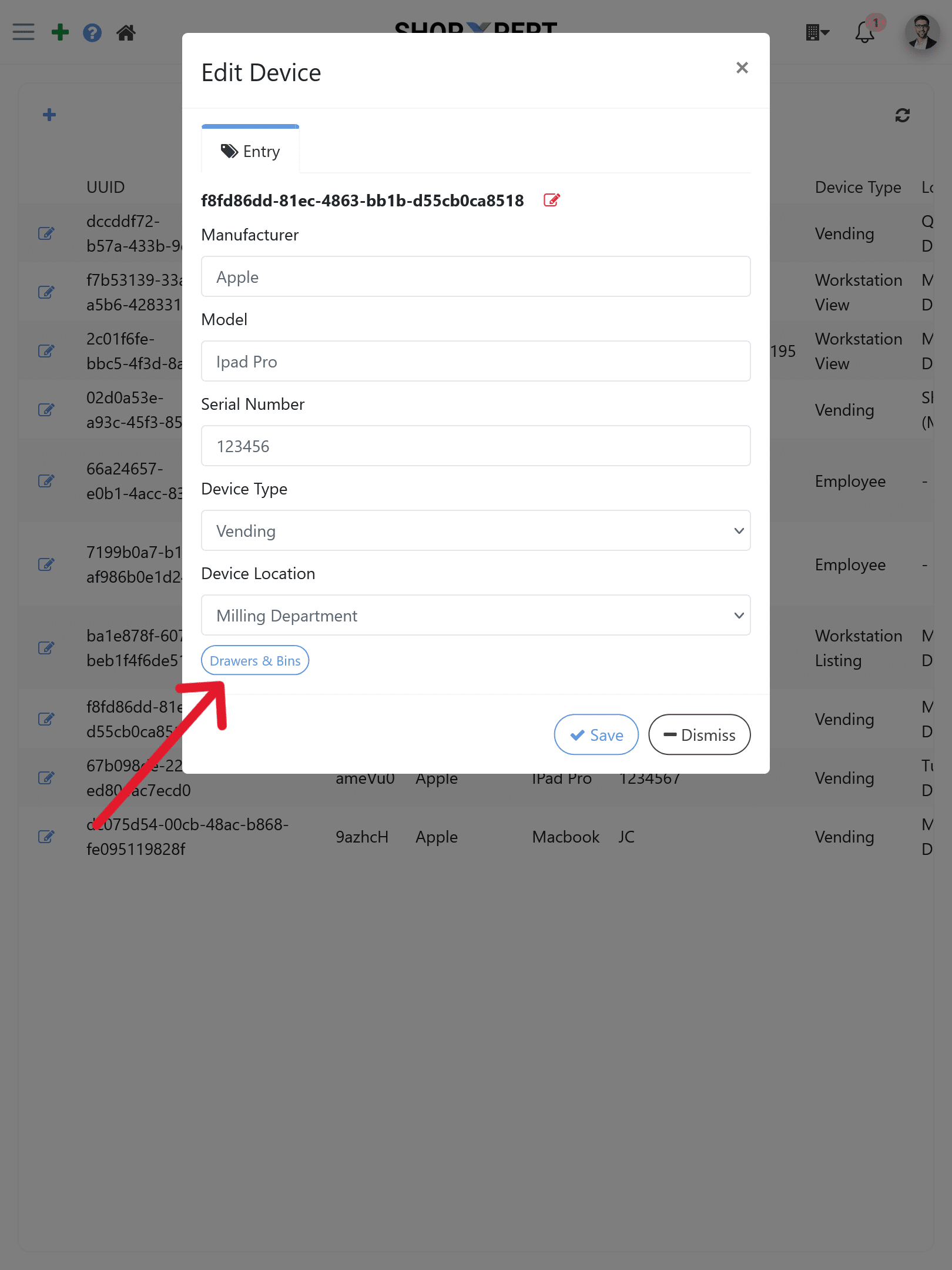
  • Choose the vending device you installed the lock on
  • Edit Device --> Access "Drawers & Bins"
Device Enrollment in app.shopxpert.comEdit Device, Drawers and Bins
Step 5
  • Select the drawer that has the lock installed
  • Assign the (SHOPXPERT) Bluetooth device to the drawer
Assign the Bluetooth device to the drawer
Step 6
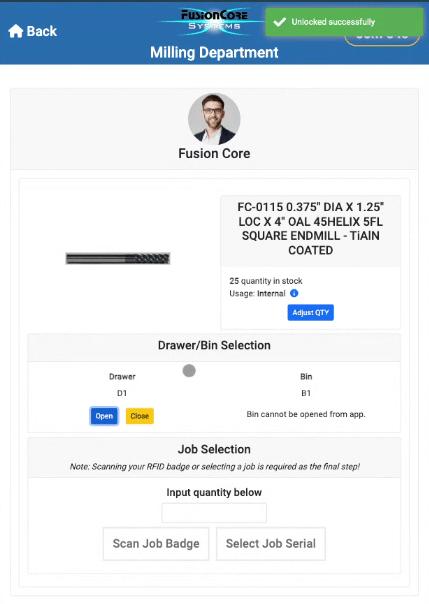
  • Test the Lock
  • Go back to vending.shopxpert.com
  • Select a tool and do a couple of OPEN --> CLOSE cycles
  • If no error messages pop up, lock has been successfully installed
Test the lock with open and close cycles

Get started today

ShopXpert helps manufacturers stay organized

Try ShopXpert for free