Solutions / Receptionist Portal

A Visitor Check-In Kiosk for Your Shop’s Front Door.

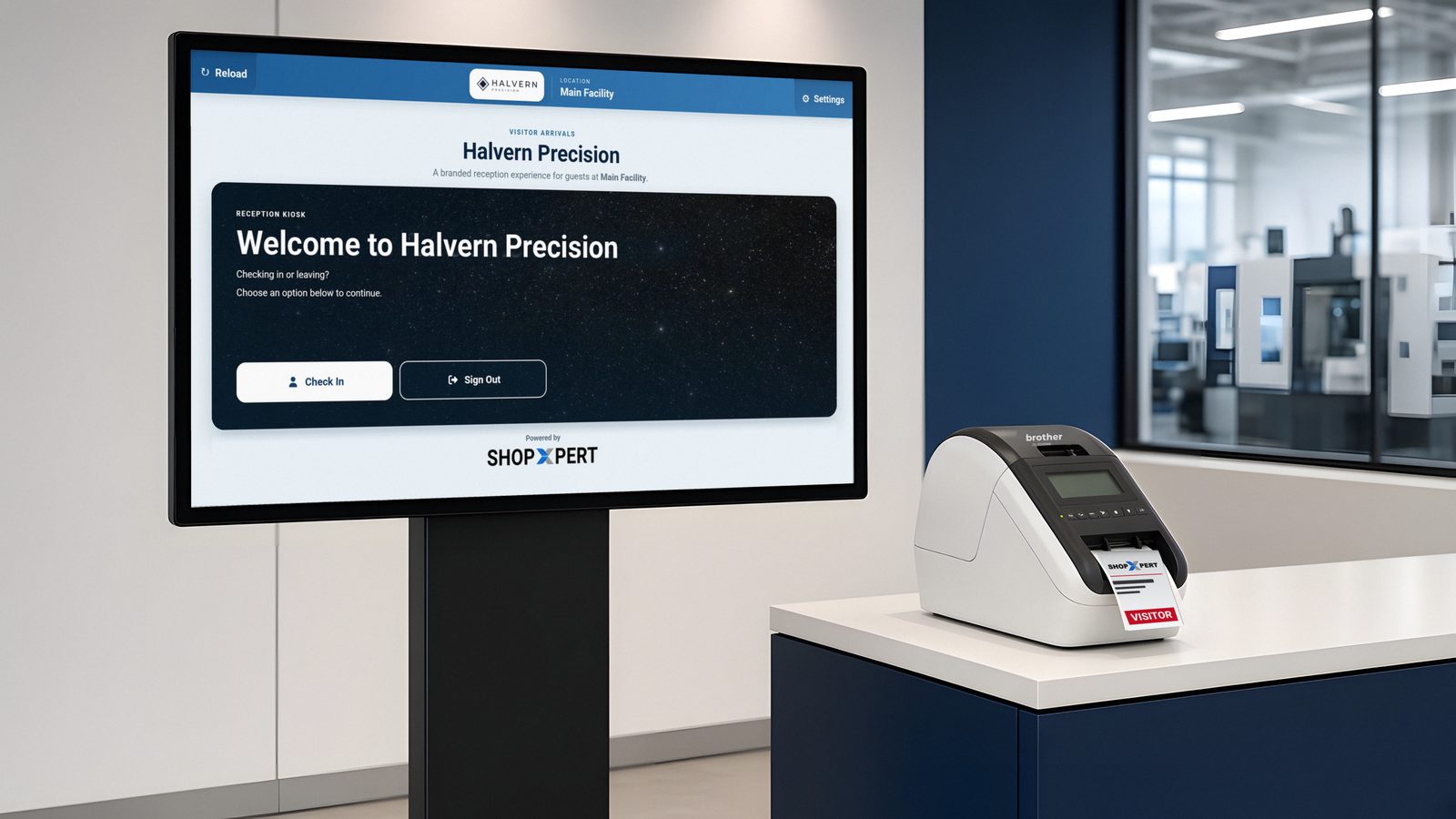
Visitors check in on a 43-inch touch screen at your front door. A red and black badge prints on a Brother label printer, and the person they came to see gets notified. You always know who is in your building.

Six short screensBadge prints right awayUS person question built in
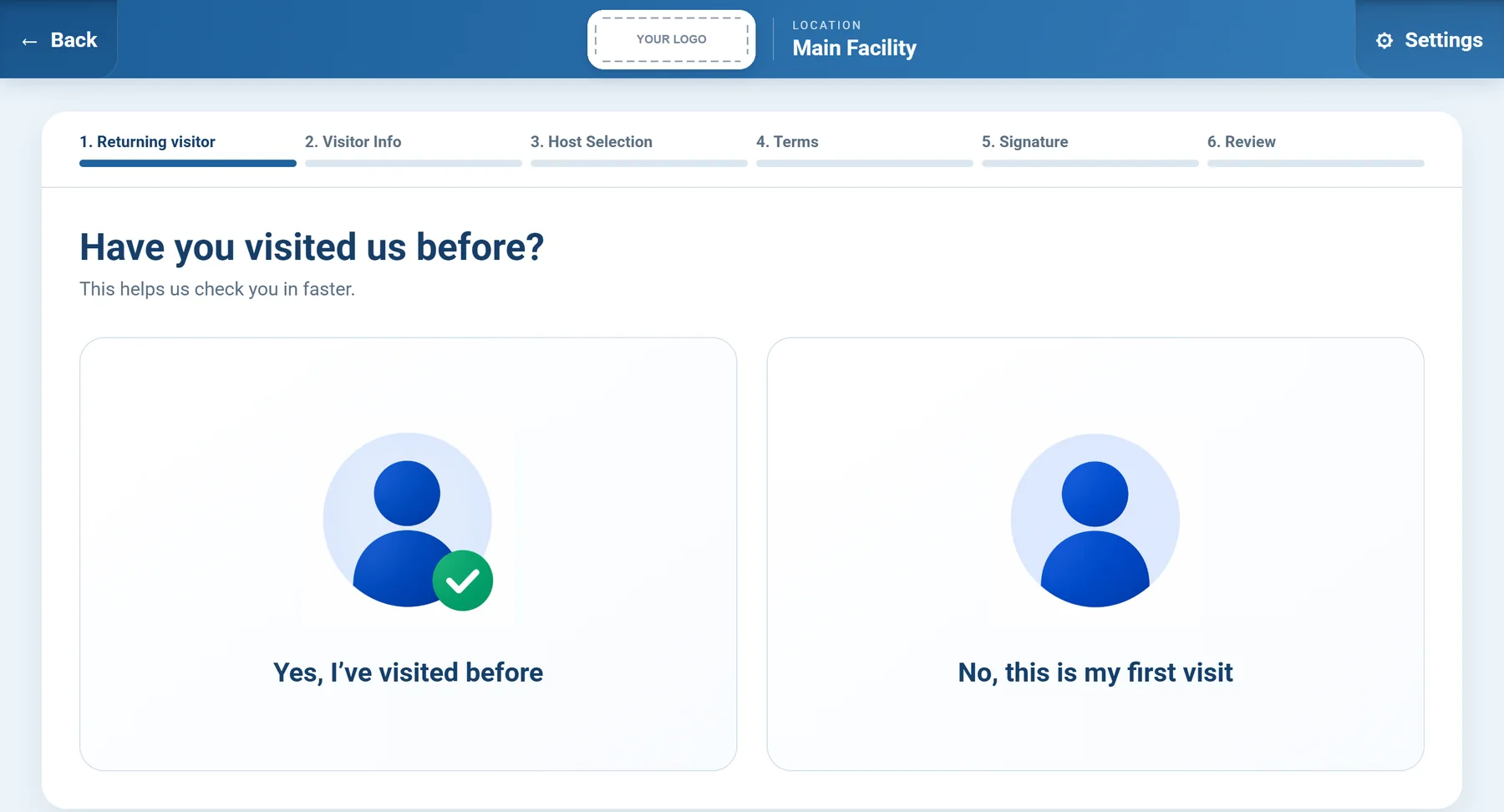
Receptionist Portal kiosk asking if the visitor has visited before

43-inch standing touch screen kiosk with a printed visitor badge. Sample badge layout.

What It Is

A Kiosk, a Badge Printer, and a Visitor Log. All in One.

Receptionist Portal replaces the clipboard at your front desk. Here is what sits at your entrance.

43-inch Receptionist Portal kiosk on a floor stand in a company lobby, with a Brother badge printer on its shelf
Hardware

43-inch touch screen kiosk

A big, easy screen on a floor stand. Visitors tap through check-in on their own.

See the 43-inch screen

SX Receptionist kiosk on a floor stand showing the visitor check-in screen, next to a Brother label printer printing a red VISITOR badge
Hardware

Brother badge printer

Prints a red and black visitor badge the second check-in is done. Connects over Wi-Fi. QL-820NWB recommended.
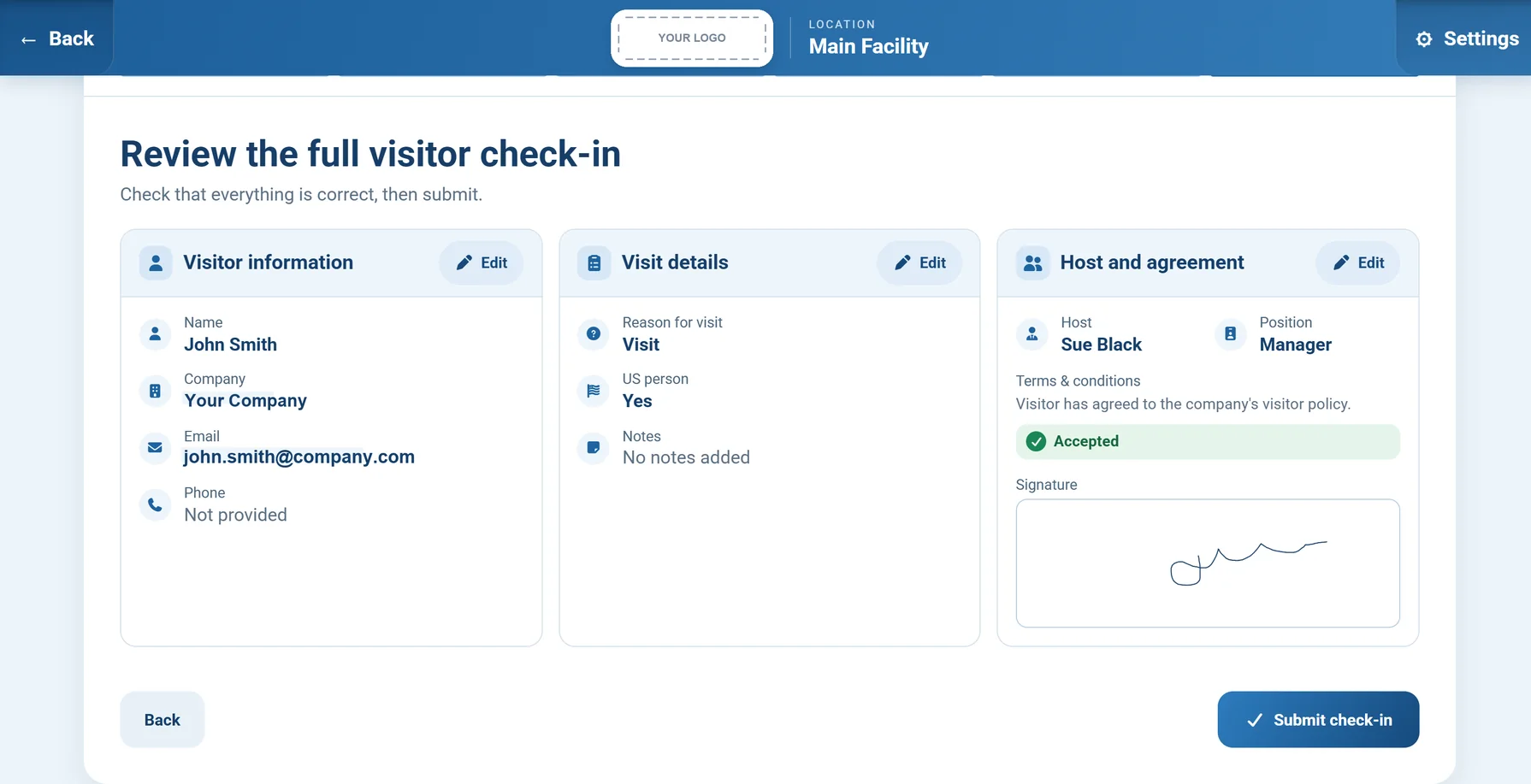
Receptionist Portal review screen showing visitor information, visit details, host, agreement, and signature
Software

Visitor records

Every visit saved with the host, reason, policy, signature, and time. Same details at every door.

Watch a visitor check in (36 seconds). Company shown is a sample.
See It at a Front Desk

How a Visit Looks at Your Entrance.

A customer, vendor, or auditor walks in. They tap Check In, answer a few questions, sign, and get a badge. The person they came to see is told they are here.

Reception does not have to stop what they are doing.

  • Works for customers, vendors, contractors, auditors, and drivers
  • Returning visitors check in faster
  • The kiosk shows your company name and logo
How It Works

Three Steps at the Door.

From the first tap to the host getting the message.

1

Visitor checks in

They tap Check In on the kiosk, enter their name and company, pick who they are here to see, agree to your rules, and sign.

2

Badge prints

The Brother printer prints a red and black badge with their name, company, host, time, and badge number.

3

Host is notified

The person they came to see is told they have arrived. When the visitor leaves, they sign out with their badge number.

The Real Check-In Screens

Six Short Screens. About a Minute.

This is what the visitor sees on the kiosk, in order.

01Receptionist Portal kiosk asking if the visitor has visited before
Returning visitorBeen here before? Enter the same email as last time and skip retyping.
02Receptionist Portal visitor information form with name, company, email, phone, reason for visit, notes, and a US person question
Visitor infoName, company, reason for the visit, and the US person question.
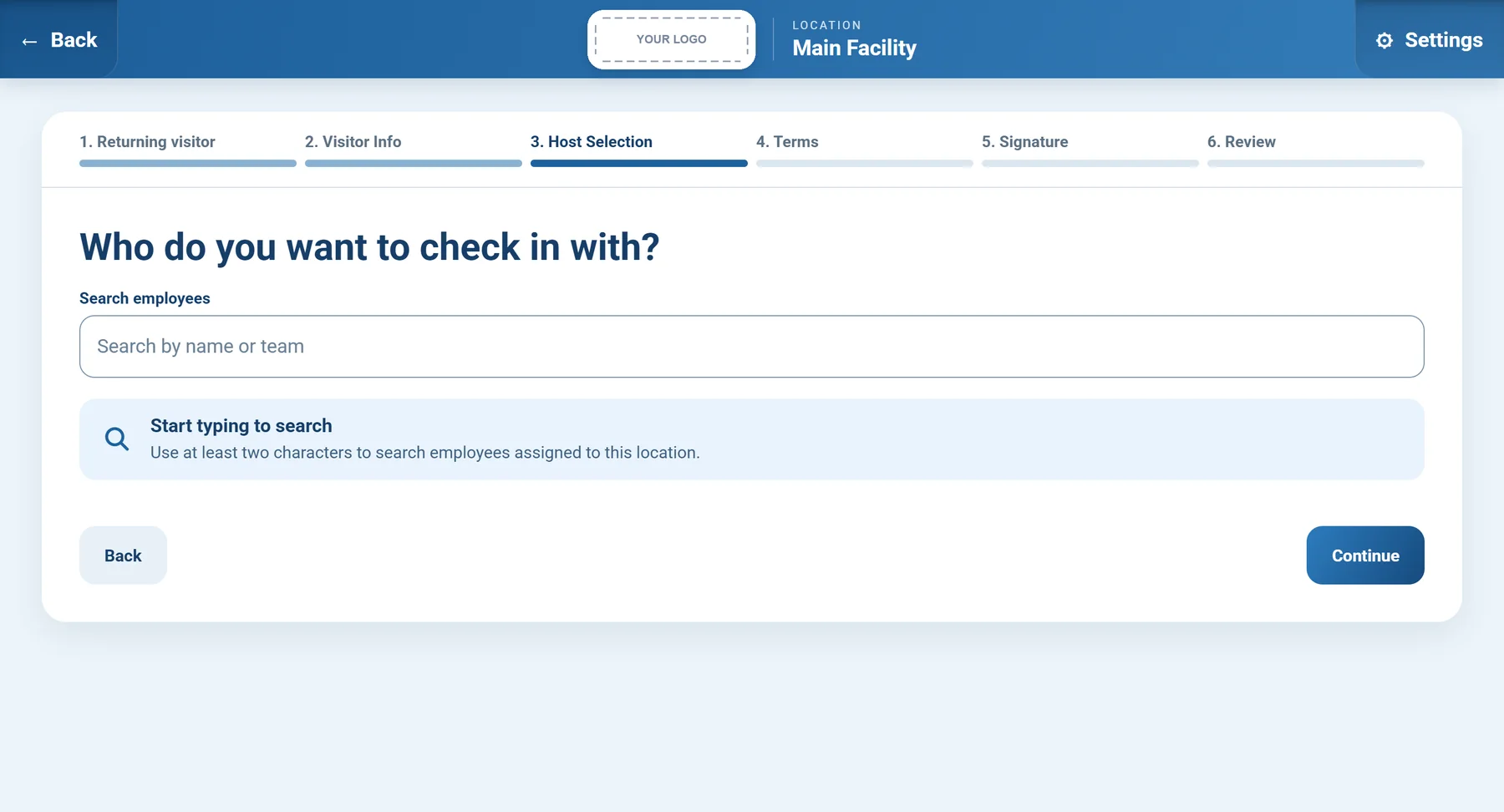
03Receptionist Portal host selection screen with a search field for employees
Pick who they are here to seeType two letters of a name or team and tap the person.
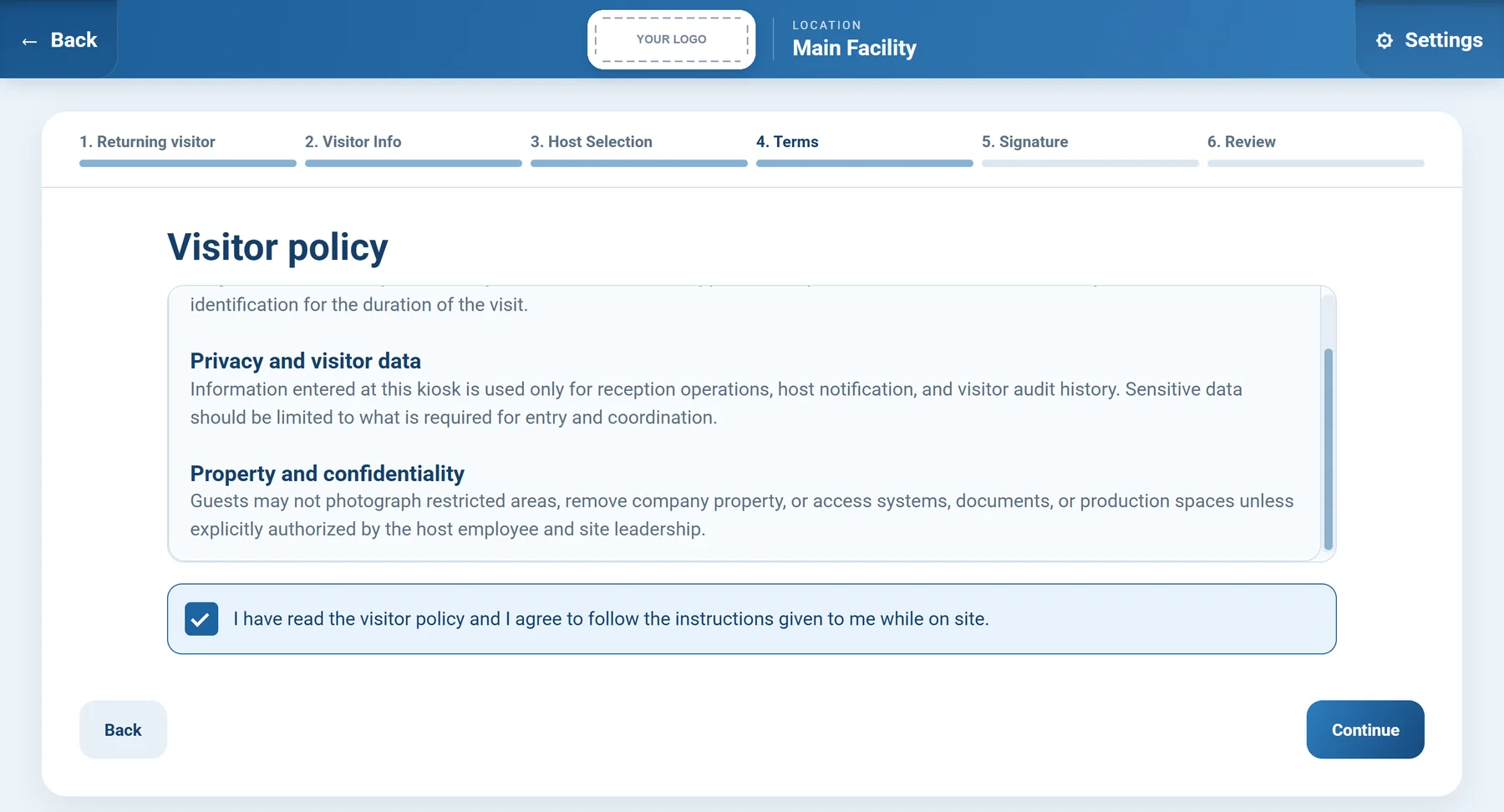
04Receptionist Portal visitor policy screen with an agreement checkbox
Your visitor policyYour shop rules show on screen. The visitor checks the box to agree.
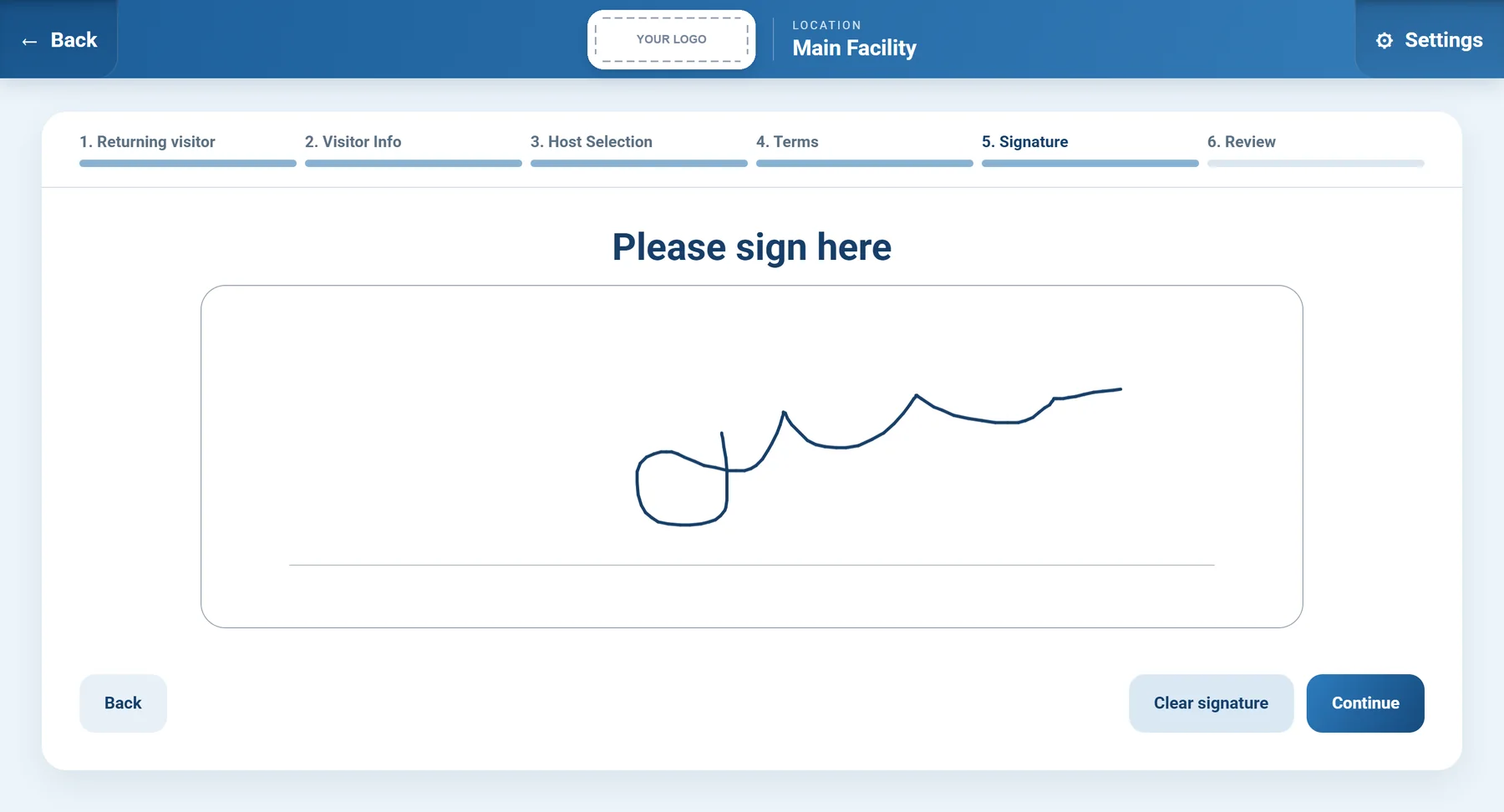
05Receptionist Portal on-screen signature pad
Sign on the screenThe signature is saved with the visit.
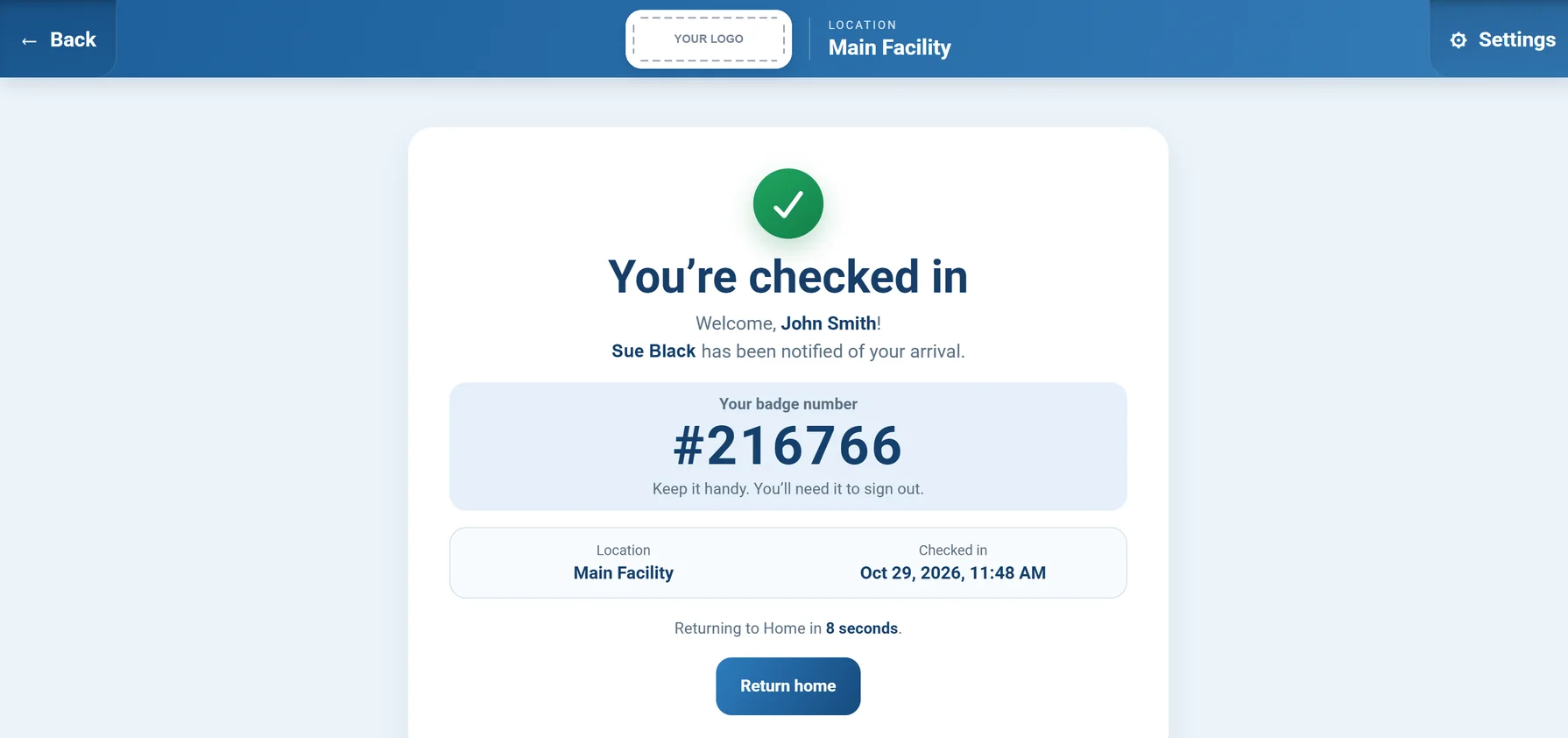
06Receptionist Portal confirmation screen with the visitor badge number and host notification
Checked inThe host is notified, the badge prints, and the visitor gets a six-digit badge number.
Visitor Badges

A Real Badge, Printed in Red and Black.

Connect a Brother QL label printer to the same Wi-Fi as the kiosk. As soon as a visitor checks in, their badge prints. Anyone on your floor can see at a glance who is a visitor and who they are with.

  • Big red VISITOR so it stands out on the shop floor
  • Name, company, host, time, and badge number
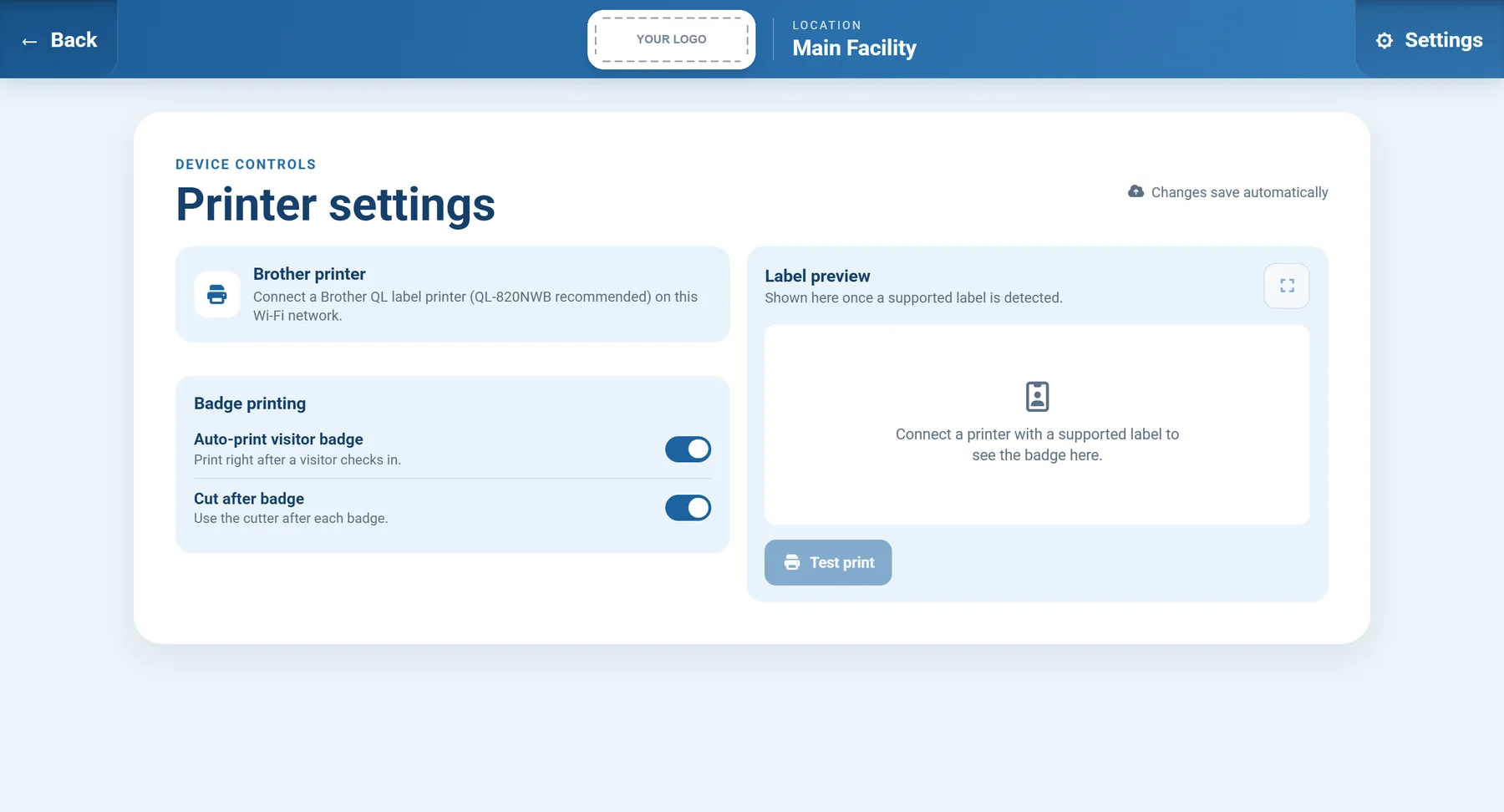
  • Auto-print on or off, and cut after each badge
  • Label preview and test print in settings

Sample badge layout. A photo of a real printed badge is coming soon.
Printer Settings
Receptionist Portal printer settings with Brother label printer, auto-print visitor badge, and cut after badge options
Built for Machine Shops

Made for Shops That Need to Know Who Is on the Floor.

Machine shops get customer audits, vendor visits, and contractors on the floor. The Receptionist Portal keeps track of all of them.

01
Export rules

US person question on every check-in

Each visitor answers if they are a US person or US citizen. Useful for shops that work under ITAR or other export rules. It does not replace your own compliance process.

02
Policy

Your shop rules, signed

Show your visitor policy on screen, such as safety gear, no photos, and escort areas. The visitor agrees and signs.

03
Audits

Ready for audits

When a customer or auditor asks who was on site last Tuesday, you have the answer with names, hosts, and times.

04
Security

Locked settings

Only an admin or team leader can open settings, with an employee card or a six-digit PIN.

05
Sites

One kiosk per entrance

Front office, shipping dock, second building. Every kiosk asks the same questions and saves the same details.

Why Switch

Paper Sign-In Sheet vs. Receptionist Portal.

The same front door, with and without the kiosk.

Paper sign-in sheetReceptionist Portal
Who is here?Hard to read, easy to skipTyped in, with time and signature
BadgeHandwritten sticker, or nonePrinted red and black badge
HostSomeone walks around looking for themNotified right away
US person checkOften missedAsked on every check-in
Audit requestDig through old bindersPull up the record
Pricing

Priced Per Kiosk.

Each kiosk at an entrance is one device. Start with your front door and add more as you need them.

Tell us how many entrances you have and we will send you a price. Ask us about adding the 43-inch screen.

Receptionist Portal

Per Device

Each kiosk at an entrance is one device. Start with your front door and add more as you need them. Ask us about adding the 43-inch screen.

  • Self check-in with signature
  • Host notification
  • Badge printing on Brother QL printers
  • Visitor records with time and date
  • Works at many entrances and sites
Questions

Visitor Sign-In Kiosk Questions.

Planning kiosks for several sites? Talk to our team.

What is the Receptionist Portal?

It is a visitor check-in kiosk for your front door. Visitors tap through six short screens, a red and black badge prints, and the person they came to see is notified. You keep a record of every visit.

What hardware do I need?

A touch screen for the entrance (we offer a 43-inch floor-standing screen) and a Brother QL label printer on the same Wi-Fi network. The QL-820NWB is recommended.

What does the badge look like?

It is printed in red and black with a big VISITOR heading, the visitor's name and company, who they are here to see, the check-in time, and a six-digit badge number.

Is the host notified when a visitor arrives?

Yes. Visitors choose who they are checking in with, and that person is notified when the check-in is submitted.

How do visitors sign out?

Each visitor gets a six-digit badge number. To leave, they enter that number on the kiosk's sign-out screen.

Does it ask the US person question?

Yes. Every visitor answers whether they are a US person or US citizen. It helps shops that work under ITAR or other export rules, but it does not replace your own compliance process.

Can we use it at more than one entrance or site?

Yes. Add a kiosk for each entrance, office, warehouse, or building. Every kiosk asks the same questions and saves the same details.

Who can change the kiosk settings?

Only an administrator or team leader, who confirms access with an employee card or a six-digit PIN.

How is it priced?

It is priced per device, and each kiosk at an entrance counts as one device. Request pricing for your entrances.

Receptionist Portal

See the Kiosk at Work.

We will show you the kiosk, the badge printing, and the visitor records in a short demo.

Meet SX Receptionist in 14 seconds.