Almost every machine shop has a story about the part that was made perfectly to the wrong drawing. The setup was right, the program ran clean, inspection passed, and the parts still got rejected because the customer had released a new revision two weeks earlier. Nobody did anything careless. The old print was simply still sitting at the machine.
Drawing revision control is how a shop makes sure that never happens. This guide covers why wrong revisions reach the floor, what a practical document control process looks like for a job shop, and what to look for in software that keeps every operator on the current print.
What Drawing Revision Control Means in a Machine Shop
Drawing revision control is the set of habits and tools that make sure everyone working on a job uses the drawing, model, and specifications at the revision the customer ordered. It covers how prints come in, where they are stored, how they get to the machine, and what happens to the old copy when a new revision arrives.
In a large company this falls under formal document control with its own department. In a job shop it is usually split between whoever enters orders, the programmer, the shop lead, and quality. That split is exactly where revisions get lost.
How the Wrong Revision Ends Up at the Machine
Wrong prints rarely come from one big mistake. They come from small gaps that add up:
- Paper copies that never leave. A printed drawing gets taped to the machine or tucked into a folder, and it stays there long after the job changes.
- Email attachments. The customer sends Rev C to one person’s inbox, and the rest of the shop keeps working from Rev B on the shared drive.
- Repeat orders. A part you made last year comes back, and someone pulls the old traveler and print without checking the revision on the new purchase order.
- Programs that do not match the print. The drawing was updated, but the CNC program, setup sheet, or inspection plan was not.
- Specs that change too. The drawing revision is current, but a called out material or finish specification has a newer revision nobody pulled.
- Mid-job changes. An engineering change arrives while parts are already on the machine, and the news reaches the office but not the operator.
Each one is a communication problem more than a machining problem. The fix is making the current revision the only one people can easily find.
Why It Matters So Much
Running to the wrong revision is expensive. The parts may be scrap, or they may need rework and a deviation request. The job ships late, the machine time is gone, and the customer starts asking about your quality system.
For aerospace, defense, and medical work it is also a compliance issue. Quality standards such as AS9100 expect you to control documents, use the right revision, and show which revision each part was made to. If you are working toward that, our guide to AS9100 traceability requirements covers the records auditors usually ask for.
A Practical Drawing Revision Control Process
You do not need a large quality department to control revisions. You need a few clear rules that everyone follows on every job.
1. Check the revision at order entry
When a purchase order comes in, compare the revision on the PO with the drawing you have on file. If they do not match, stop and ask the customer before the job is released. This one check catches most repeat order mistakes.
2. Keep one home for every file
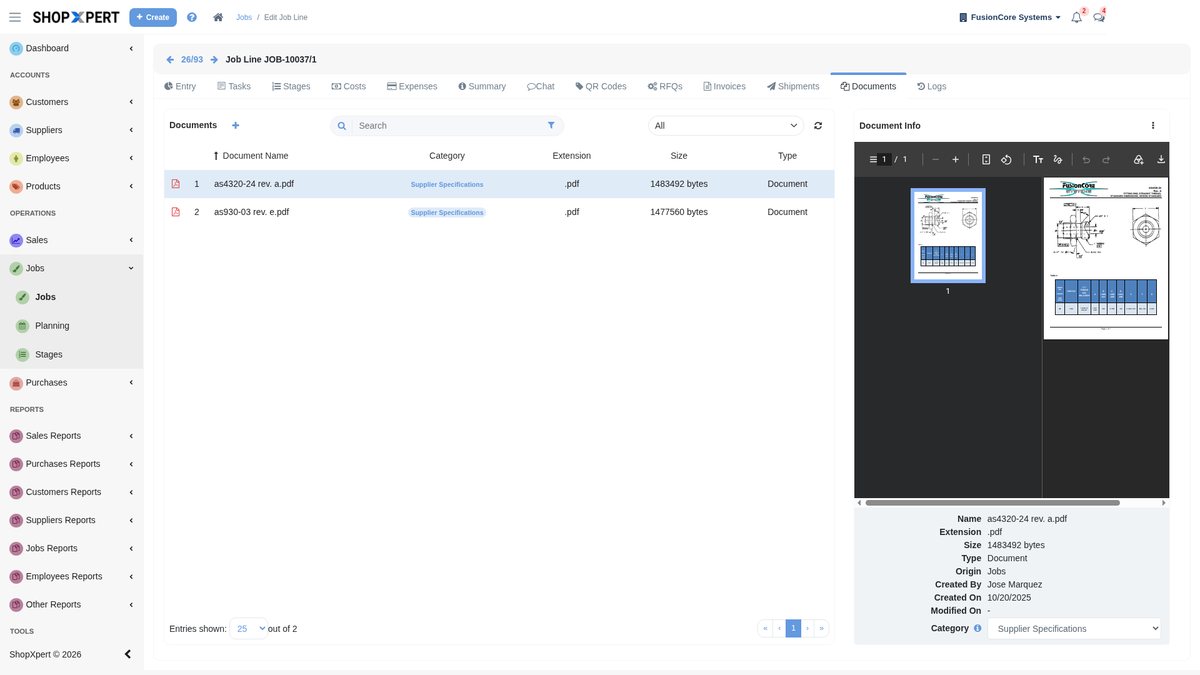
Store the drawing, 3D model, specifications, and work instructions with the job itself, not in someone’s inbox or a folder on one computer. Put the revision letter in the file name so it is visible at a glance.
3. Send the print to the machine digitally
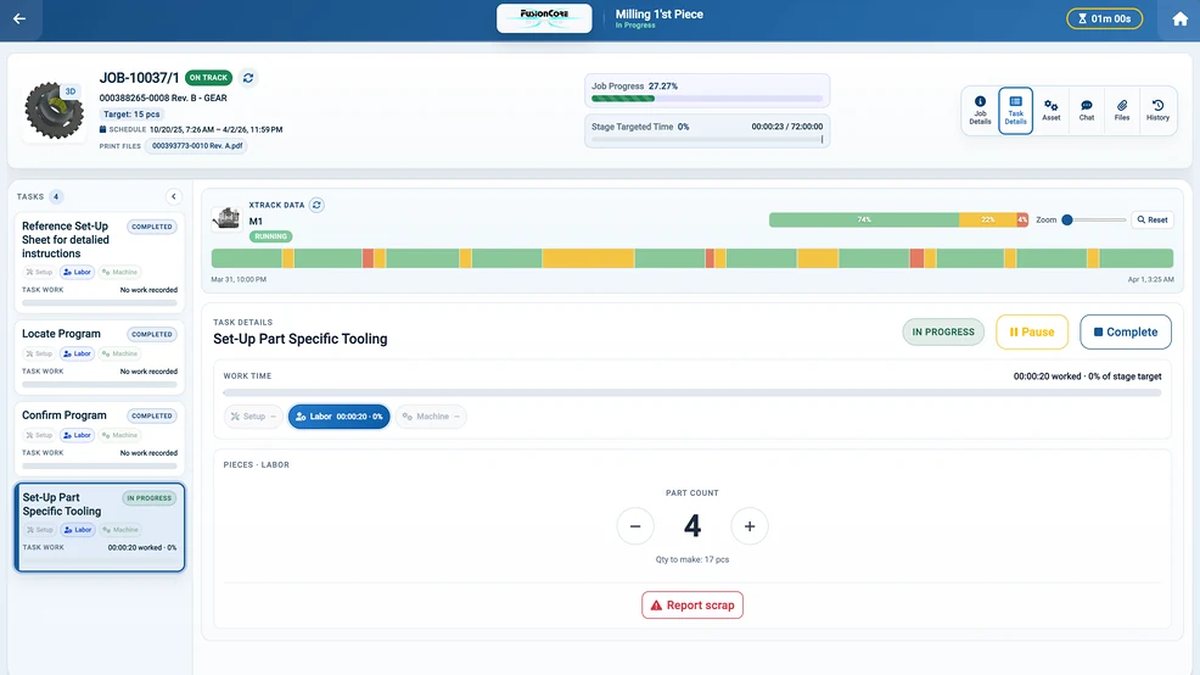
Paper copies are the biggest source of old revisions. When operators open the drawing on a screen at the machine, there is only one copy to keep current, and you never have to collect and destroy old prints.
4. Tie programs, setup sheets, and inspection to the revision
When the drawing changes, the program, setup sheet, and inspection plan should change with it. Note the drawing revision each program was written for, and treat a mismatch as a reason to stop.
5. Have a plan for mid-job changes
Decide in advance who receives engineering changes, how the job gets updated, and how the operator finds out. Parts already made to the old revision need a decision too: finish, rework, or set aside until the customer answers.
6. Confirm the revision at first article
Make revision part of your first piece and first article checks. The inspector should confirm the drawing revision, the program, and the specifications before the production run continues. Record which revision the parts were inspected against.
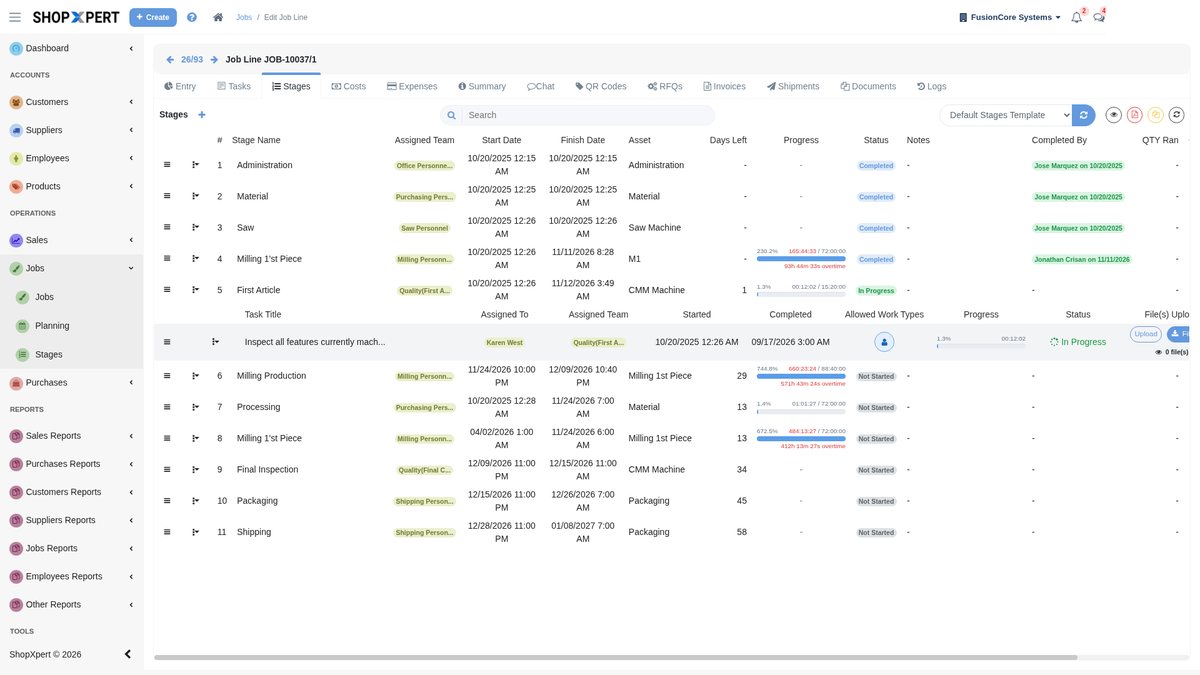
7. Keep the record with the job
When the job closes, the drawing, specifications, inspection records, and certificates should stay attached to it. When the part comes back two years later, the next person can see exactly what was made and to which revision.
Common Revision Control Mistakes to Avoid
- Trusting the file name instead of checking the revision block on the drawing itself.
- Leaving printed copies on machines or in job folders after the job is done.
- Updating the drawing but not the CNC program or inspection plan.
- Pulling the print from last year’s job on a repeat order.
- Letting customer drawings live in personal email instead of with the job.
- Forgetting the revisions of referenced specifications, not just the drawing.
What to Look For in Software
Spreadsheets and shared drives can hold files, but they do not connect the file to the work. When you compare systems, ask:
- Can drawings, models, specifications, and work instructions be attached directly to the job?
- Can operators open the current drawing at the machine without walking to the office?
- Can they view 3D models, not just flat PDFs?
- When a file changes, does the shop floor see the update right away?
- Can inspection forms and file uploads be attached to the job or task they belong to?
- Does the full record stay with the job after it ships?
If your shop still runs on paper, our post on the real cost of paper job travelers looks at what that costs beyond revision mistakes.
How ShopXpert Keeps Every Machine on the Current Revision
ShopXpert has been building shop management software for machine shops since 2020, and drawings live in the same system as jobs, stages, and inspection. With ShopXpert you can:
- Keep files with the job. Jobs and sales orders have a Documents tab, so drawings, revisions, work instructions, and STEP models stay attached to the job operators are running.
- Open the right job by scanning. Operators scan their traveler or job card, and the right job, drawings, and work instructions open in the ShopXpert Workstation view.
- View drawings and 3D models at the machine. Operators can rotate and zoom 3D models and drawings on workstation screens and waterproof tablets.
- Work from the latest version. Changes sync in real time, so the floor sees updates as soon as they are made.
- Attach forms to the work. Inspection forms can be attached to jobs and tasks, and inspectors can open drawings and fill in forms on a tablet next to the part.
See how this looks on the floor in the ShopXpert shop floor tour, or read how ShopXpert for aerospace manufacturing keeps controlled drawings and revisions attached to each job. Jobs and workstation queues run in production management, all on the same ShopXpert platform.
Put the Right Print in Front of Every Operator
Bring a drawing that has changed revisions on you, and we will show you how that job would run in ShopXpert from order entry to the machine. Book a ShopXpert demo.