
Create Teams - Assign employees to teams
A step-by-step guide on how to create teams and assign employees.
Organizing employees into teams enhances collaboration, clarifies responsibilities, and allows for better task management. Here’s a step-by-step guide on how to create teams and assign employees to them.
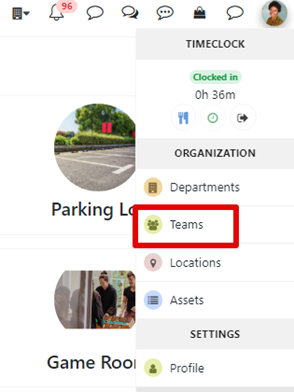
a) Go to Team Management
• Access the Settings page in your admin dashboard.
• Select Team to create and manage teams.
b) Create a New Team
• Click on Create New Team.
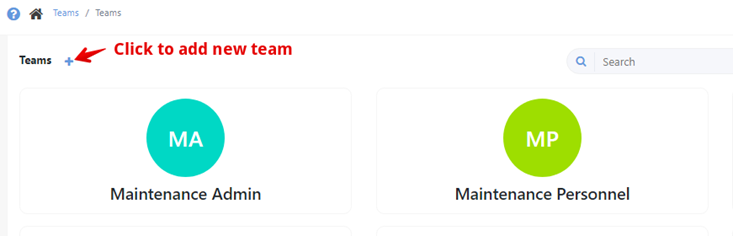
• Team Name: Enter a clear and descriptive name, like “Marketing,” “Sales,” or “Customer Support.”
• Description: Optionally, add a description to specify the team’s role or goals.
• Department: Choose the specific department for the team.

c) Assign Employees to the Team
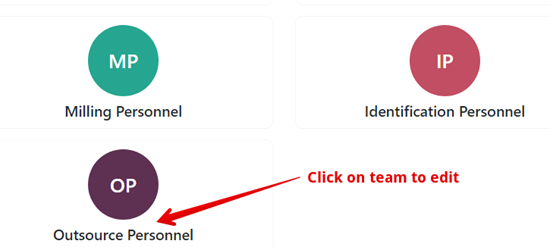
• Click on the team you created to open and edit
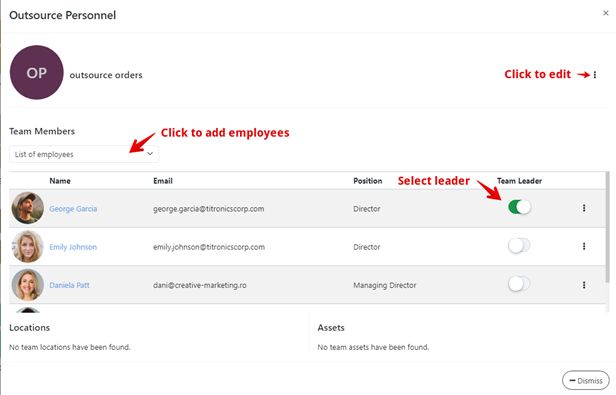
• Choose a Team Leader if one employee will oversee the team.
• Open the team and manually add employees by selecting from a list of available employees
Tessa can point you to the right guide, or bring in a ShopXpert teammate.