Every job in a machine shop depends on something you buy: bar stock, plate, inserts, end mills, coolant, hardware, and outside services like heat treat or plating. When purchasing runs on emails, sticky notes, and memory, the cost shows up later as a machine waiting on material, a rush freight charge, or an invoice nobody can match to what arrived.
Purchase order management is the process that keeps buying under control: deciding what to order, writing a complete PO, tracking it until it arrives, receiving it against the order, and charging the cost to the right job. This guide lays out a practical purchase order process for a job shop, plus the habits that keep it working when the shop gets busy.
What Purchase Order Management Covers in a Machine Shop
Most shops buy four kinds of things, and each one starts for a different reason:
- Raw material. Bought for a specific job, usually with a material spec, a certification requirement, and a date it must arrive before the first operation.
- Tooling and consumables. Inserts, drills, taps, and gloves that are used every day and should be restocked from usage, not from a hunch.
- MRO supplies. Filters, way oil, belts, and spare parts that keep machines running.
- Outside services. Operations a supplier performs on your parts, such as heat treat, anodize, or grinding. These have their own steps, covered in our guide to outside processing for machine shops.
A good purchasing process handles all four in one place, so the buyer, the shop floor, and accounting look at the same orders.
Where the Purchasing Process Breaks Down
The problems are familiar in almost every growing shop:
- Orders start too late. Nobody notices the material for next week’s job until the traveler reaches the saw.
- Incomplete POs. The order says “6061 bar” with no diameter tolerance, temper, or cert requirement, so the wrong stock shows up.
- No status. The floor asks the buyer, the buyer emails the supplier, and the answer lives in one inbox.
- Receiving without the PO. Boxes get opened and put away, but nobody checks the count, the certs, or whether it was a partial shipment.
- Invoices that do not match. Accounting gets a bill for a price or quantity that differs from the order and has to chase the story.
- Costs that never reach the job. Material is bought, but the job shows no material cost, so job costing looks better than it really was.
A Purchase Order Process That Holds Up
You do not need a complicated approval chain. You need the same steps every time, with each one recorded.
1. Start from a real need
Every PO should trace back to a reason: a job that needs material, an item that dropped below its minimum, or a request from maintenance or the floor. When the reason is attached, the buyer can set priorities, and anyone can later see why the money was spent.
2. Choose the supplier on facts
Keep an approved supplier list with current certifications, past on-time delivery, and quality history. For larger buys or new parts, request quotes from more than one supplier and compare price, lead time, and track record side by side.
3. Write a complete PO
A purchase order is a contract, so make it specific. Include part or item number, revision where it applies, material spec, quantity, unit price, required date, certification or test report requirements, ship-to location, and the job number it supports. Clear POs prevent most receiving problems.
4. Set simple approval limits
Decide who can place orders and up to what amount. Routine restocking can go through without a manager, while large or unusual buys get a second look. Write the limits down so they do not depend on who happens to be in the office.
5. Confirm and track the order
Ask suppliers to confirm the price and ship date. Track each open PO against its due date, and follow up before it is late, not after the job is waiting.
6. Receive against the PO
When the shipment arrives, check it against the order: item, quantity, and paperwork such as material certs. Record partial deliveries as partial, so the rest stays open. Material that does not match the PO should be held, not put on the shelf.
7. Match the invoice and close the PO
Before paying, compare the invoice to the PO and to what was received. Accountants call this a three-way match. When all three agree, the PO closes and the cost lands on the job or the right expense account.
Set Min and Max Levels So Routine Buys Run Themselves
Tooling and consumables are the best place to automate purchasing. Give each item a minimum and a maximum quantity and assign a supplier. When stock drops to the minimum, the item is flagged and a PO is created for enough to bring it back to the maximum. Base the levels on real usage and the supplier’s lead time, then adjust them as usage changes. Our article on tool crib management covers how to track usage so those numbers are right.
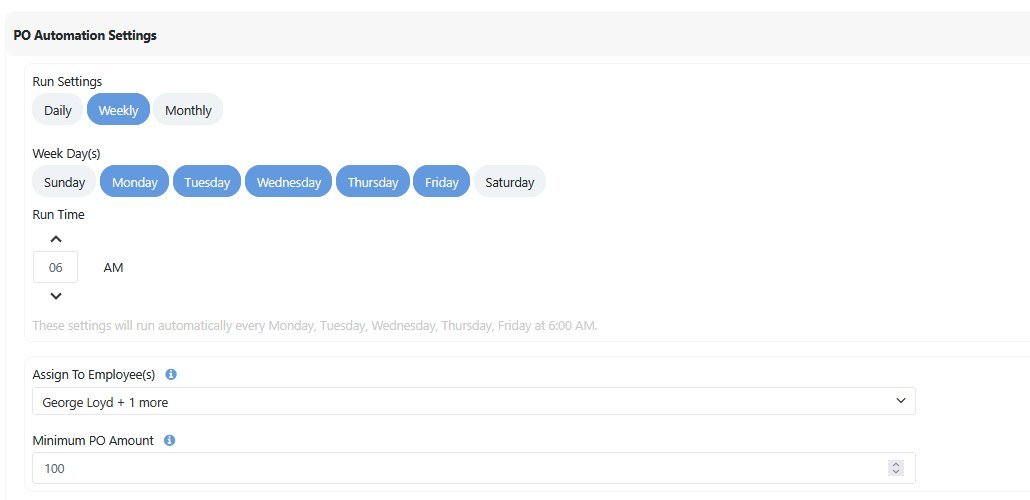
Running reorders on a schedule, such as weekday mornings, also groups items by supplier, which cuts down on small orders and separate shipping charges.
Tie Every Purchase to a Job
Material and outside services are often the largest costs on a job. If the PO carries the job number, the cost can flow into job costing as soon as it is received or invoiced, and you can compare actual material cost to what you quoted. For shops working under AS9100 or customer flowdowns, linking the PO, the material cert, and the job also makes traceability much easier to prove during an audit.
Make PO Status Visible to Everyone
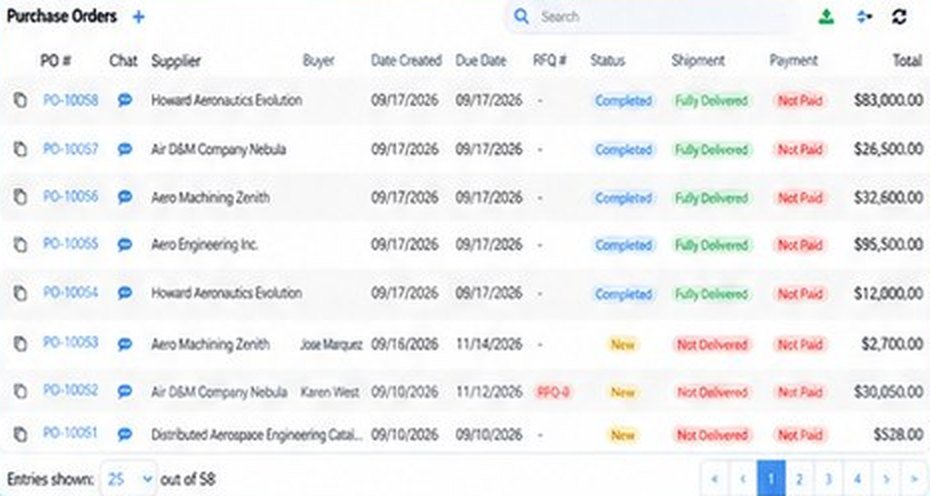
Purchasing should not be a black box. A shared purchase order list with supplier, buyer, due date, status, shipment, and payment lets the floor see whether material is coming without asking, and lets accounting see what has been received and what is still open.
Purchase Order Management Checklist
- Every PO linked to a job, a reorder level, or a written request
- Approved supplier list with current certifications
- POs include spec, revision, quantity, price, required date, and cert requirements
- Approval limits written down
- Open POs reviewed against due dates every week
- Receiving checks item, quantity, and paperwork against the PO
- Partial deliveries recorded as partial
- Invoices matched to the PO and the receipt before payment
- Min and max levels set for tooling and consumables
How ShopXpert Handles Purchase Order Management
ShopXpert has been building manufacturing software for machine shops since 2020, and purchasing is part of the same system as jobs, inventory, and quality.
- Automatic purchase orders. With ShopXpert inventory management, products below their minimum are flagged, and purchase orders are created with one click or on a daily, weekly, or monthly schedule, ordering enough to reach the maximum and sending each order to the product’s assigned supplier. You choose the run days and time, who is notified, and a minimum PO amount.
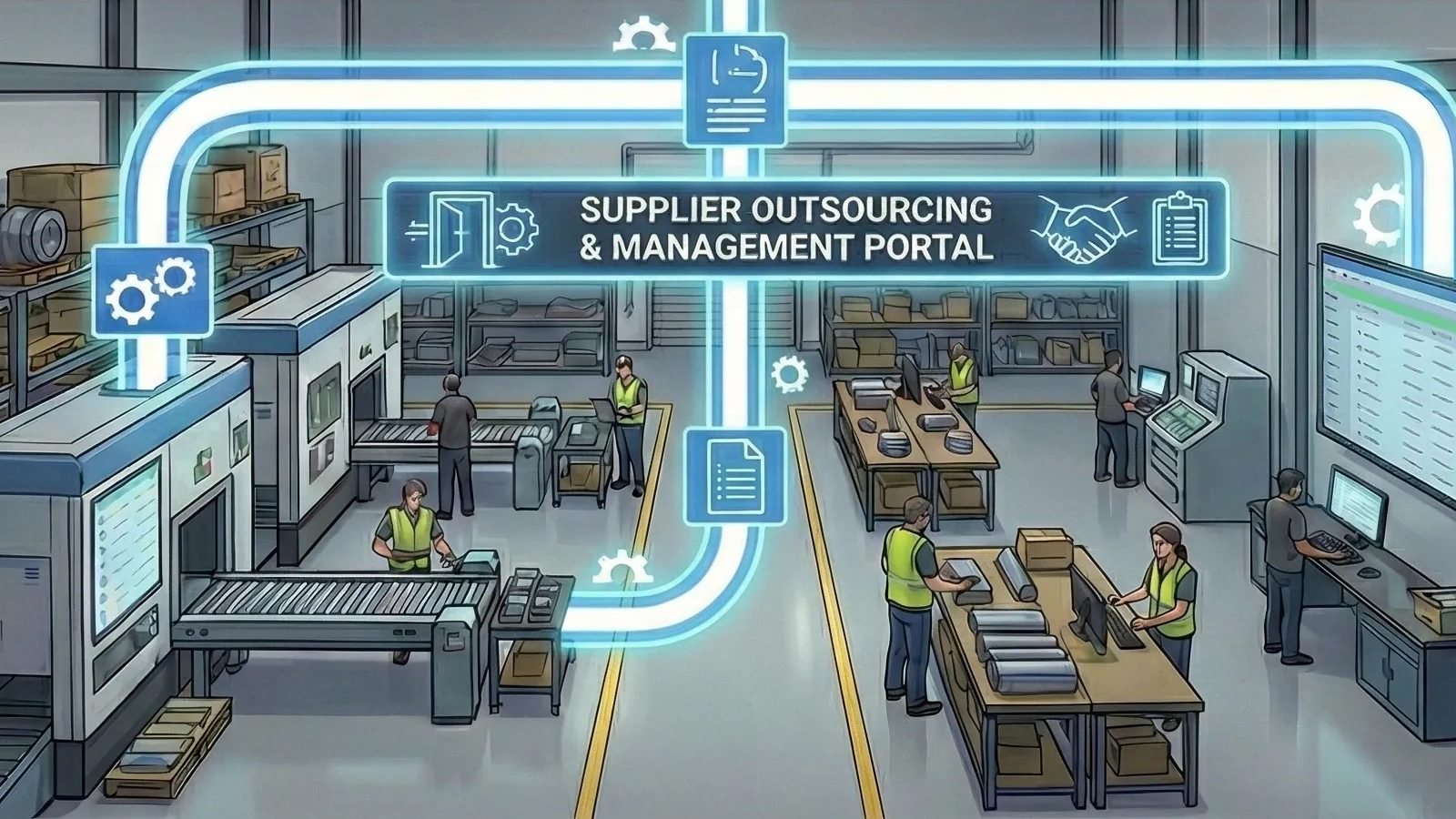
- RFQs to POs. Supplier and outsource management sends RFQs to one or many suppliers, compares bids, and creates the purchase order from the winning bid. Suppliers update order status, upload packing slips, and attach invoices in their own portal, and chat stays on each PO.
- Purchasing tied to jobs. The ShopXpert manufacturing ERP creates purchase orders from supplier RFQs, reserves inventory for production, and tracks suppliers with scorecards for on-time delivery and quality.
- QuickBooks sync. The QuickBooks integration sends purchase orders, invoices, suppliers, and job costs from ShopXpert to QuickBooks, so the books match what operations ordered.
See Your Purchasing in One Place
Bring a few recent purchase orders and your current reorder list, and we will show you how ShopXpert would handle requests, automatic reorders, supplier tracking, and job costs for your shop. Book a ShopXpert demo.