
PO automation not generating purchase orders? Check the Automatic generation of POs setting
PO Automation Settings look right, but no POs are created overnight and the run time seems to reset? Turn on Automatic generation of POs in Settings > General > Company Information.
You set up PO Automation, the PO Automation Settings page looks right, and the schedule summary says it will run. But the next morning, after the run time (for example 1:00 AM), no purchase orders were created, and when you open the settings again the run time looks like it reset.
Symptoms
- No POs are generated automatically overnight or on the days you picked.
- No POs were created this morning, even though the run time has passed.
- The run time on PO Automation Settings looks like it reset.
- Everything on the PO Automation Settings page looks correct.
Why it happens
PO Automation has two parts. The PO Automation Settings page holds the schedule: Run Settings (Daily, Weekly or Monthly), Week Day(s), Run Time, Assign To Employee(s) and Minimum PO Amount. The Automatic generation of POs switch, in Settings > General > Company Information, turns the feature on.
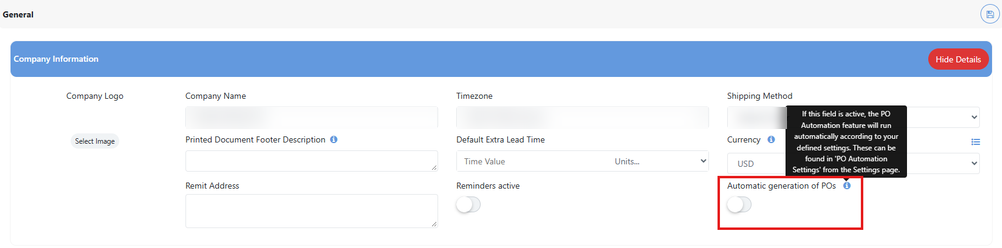
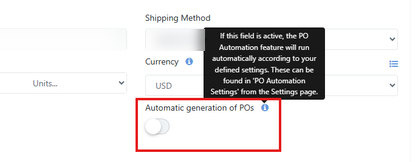
The info icon next to the switch says: “If this field is active, the PO Automation feature will run automatically according to your defined settings. These can be found in ‘PO Automation Settings’ from the Settings page.”
If the switch is off, the schedule does not run, no matter how the PO Automation Settings page is set up.
1. Turn on Automatic generation of POs
- In the ShopXpert app, open Settings.
- Open General.
- Find the Company Information section. If it is collapsed, open it.
- Find Automatic generation of POs, under Shipping Method and Currency on the right.
- Turn the switch on.
- If the change does not save on its own, click the save icon at the top right of the General panel.
2. Check your PO Automation Settings
- Go to Settings > PO Automation. The page is called PO Automation Settings.
- Under Run Settings, pick Daily, Weekly or Monthly. For Weekly, pick the Week Day(s).
- Set the Run Time, for example 01 AM.
- Read the summary line under Run Time, for example “These settings will run automatically every Monday, Tuesday, Wednesday, Thursday, Friday at 1:00 AM.” Make sure it matches what you want.
- Check Assign To Employee(s) and Minimum PO Amount, then save.
3. Check that it worked the next morning
- Wait until after the next scheduled run time on a day you picked.
- Open Purchases in the left menu and look at your purchase orders. New POs from the automatic run should be there.
- Open Settings > PO Automation again and confirm the Run Time and days are still what you set.
- Go back to Settings > General and confirm Automatic generation of POs is still on.
A run only creates POs when there is something to order, and the Minimum PO Amount can hold back small orders. If the switch is on, the schedule is right, and a run still creates nothing you expected, contact us with the steps below.
Related articles
Still stuck?
Start a chat and choose Talk to a person, or book a demo. Tell us your PO Automation schedule and the morning no POs were created. Do not share passwords or customer data.
Tessa can point you to the right guide, or bring in a ShopXpert teammate.