
How To Open Prints and Download Model Files
In order to be able to view the drawing , one needs to be uploaded from the app portal. See in the image below a pdf drawing has been uploaded to the “Print Files” section.
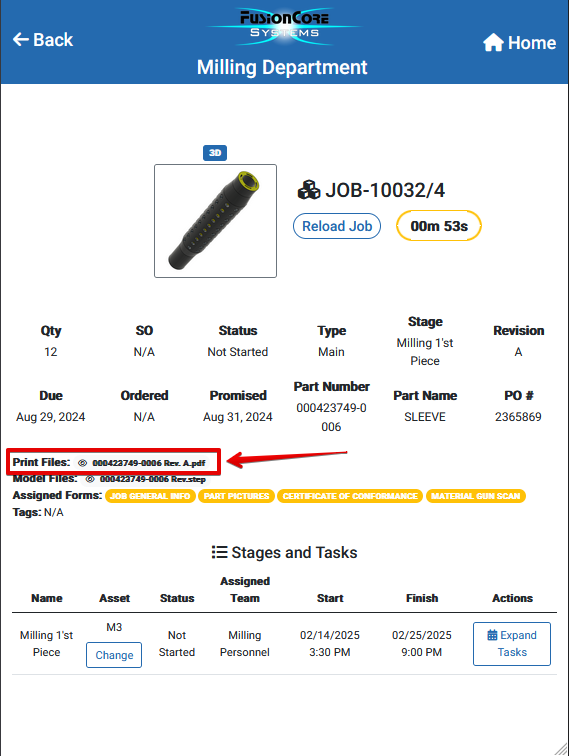
To open the PDF viewer simply click on the attached PDF file.
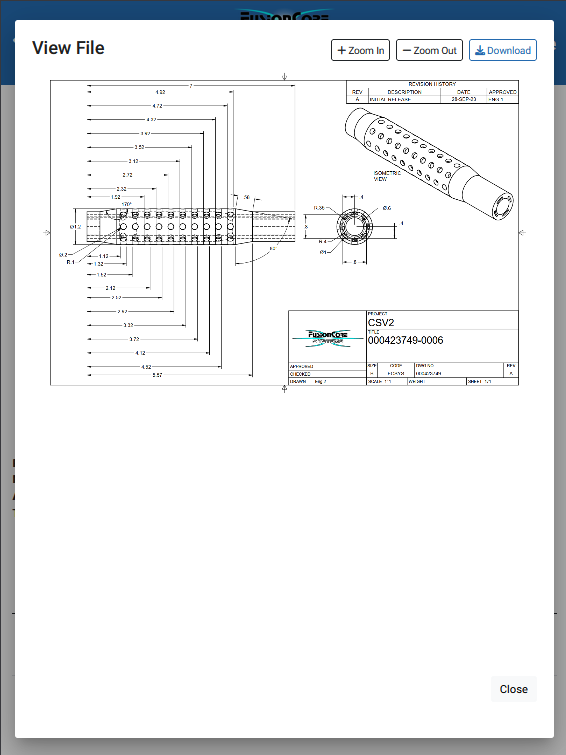
The print is now open and you are able to review.
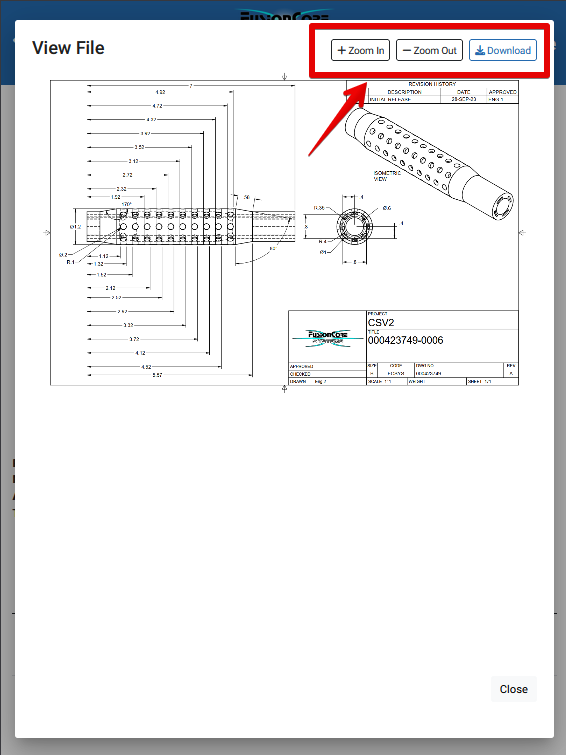
Zoom In & Zoom Out – Adjust the image size to your needs.
Download Button – Ability To Download the PDF drawing on your workstation device memory.
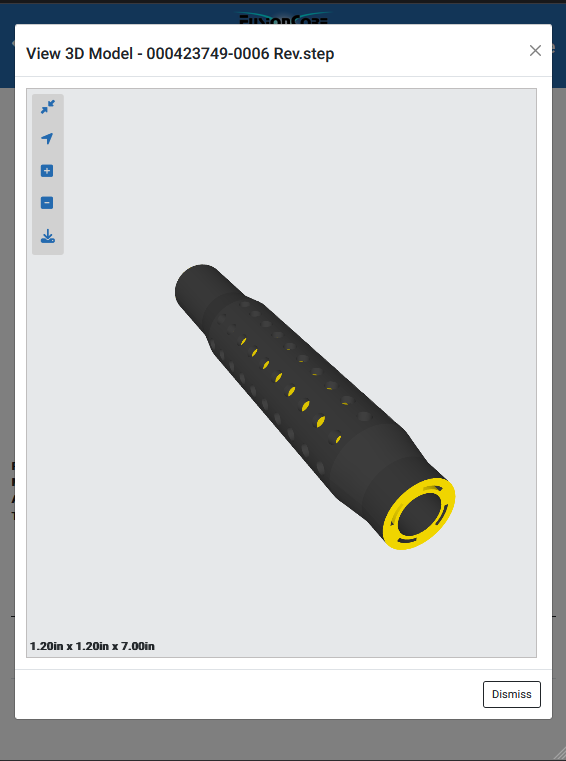
To open up a model, its ” .stp ” file must be provided in the “Model Files” field, this action it’s performed in the App Portal.
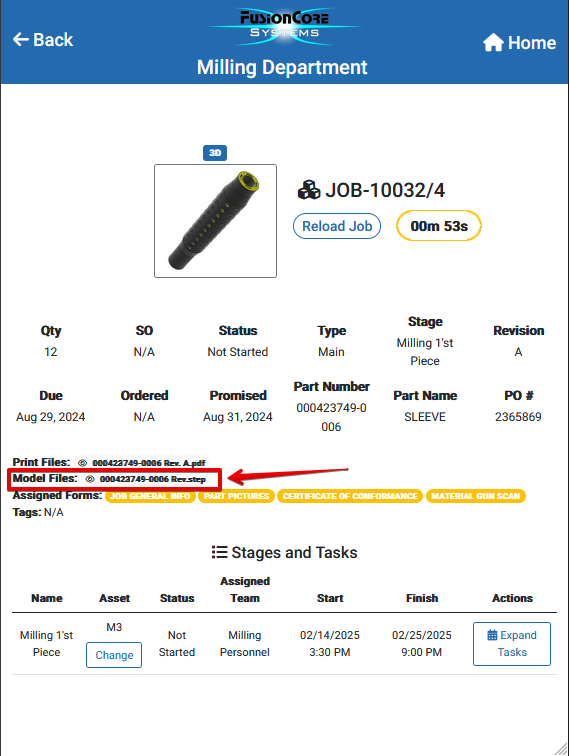
To open the Model File simply click on the attached STP file. The “3D Viewer Tool ” will open up. —> Follow this link for : How to use 3D Viewer Tool
Tessa can point you to the right guide, or bring in a ShopXpert teammate.