
How to Use Workstation 3D viewer
Open your Model Files with our 3D viewer tool , click on the part image so you can rotate the part, zoom in and see the part dimensions.
The 3D viewer is active and available only when a model file (.stp, .stl) is uploaded to the job line in the “Model Files” section. This can be done only from the App portal. .
If a model file is available , a little “3D” icon will appear over the part picture.
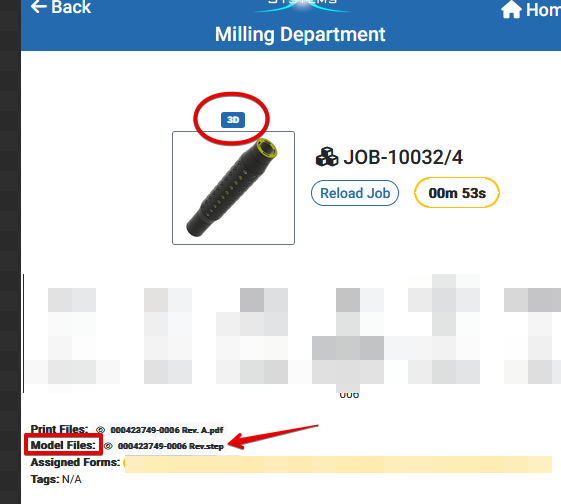
If the 3D icon is available over your part picture , 3D viewer is available. To open it simply click on the part picture.
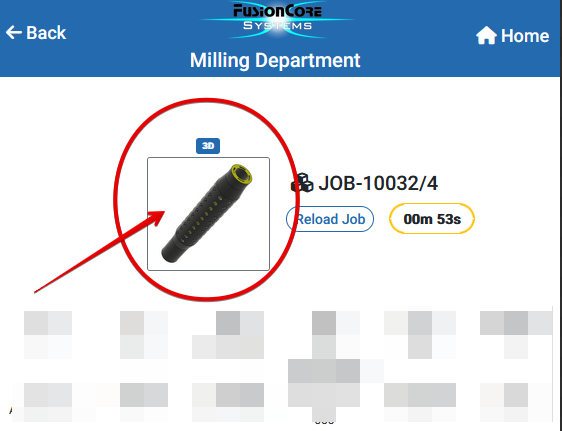
- Click and Drag on the part to Rotate it in any direction.

- Action Buttons
– Download Step File
– Zoom In
– Zoom Out
– Re-Center Part
– Minimize 3D Viewer Window
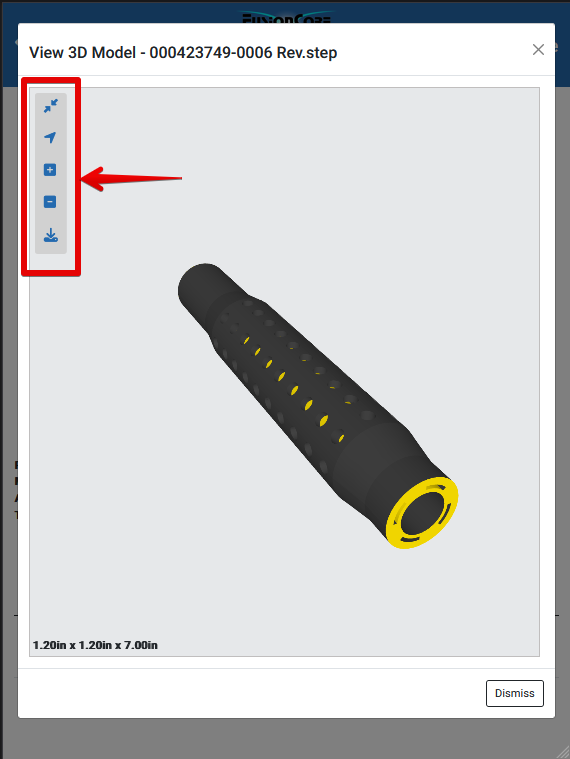
Cube Size – ShopXpert 3D Viewer shows actual cube size of the part based on orientation of the model and center point.
Tessa can point you to the right guide, or bring in a ShopXpert teammate.