
How To Submit a No Bid on an RFQ
Each RFQ must be Accepted or Rejected in order to move forward. This is what we do when we BID. Here is how to do it.
Go to Job Board to see the RFQ and messages.
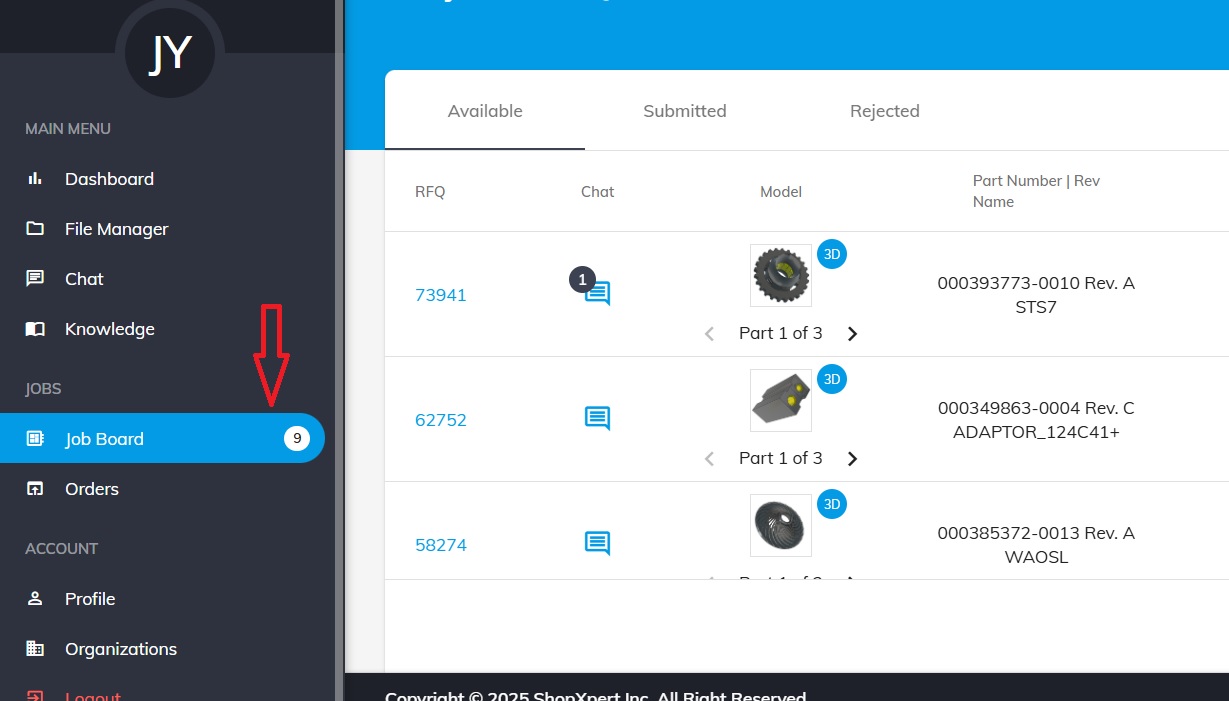
Here you can see some general details about every RFQ.
Click on the RFQ number.
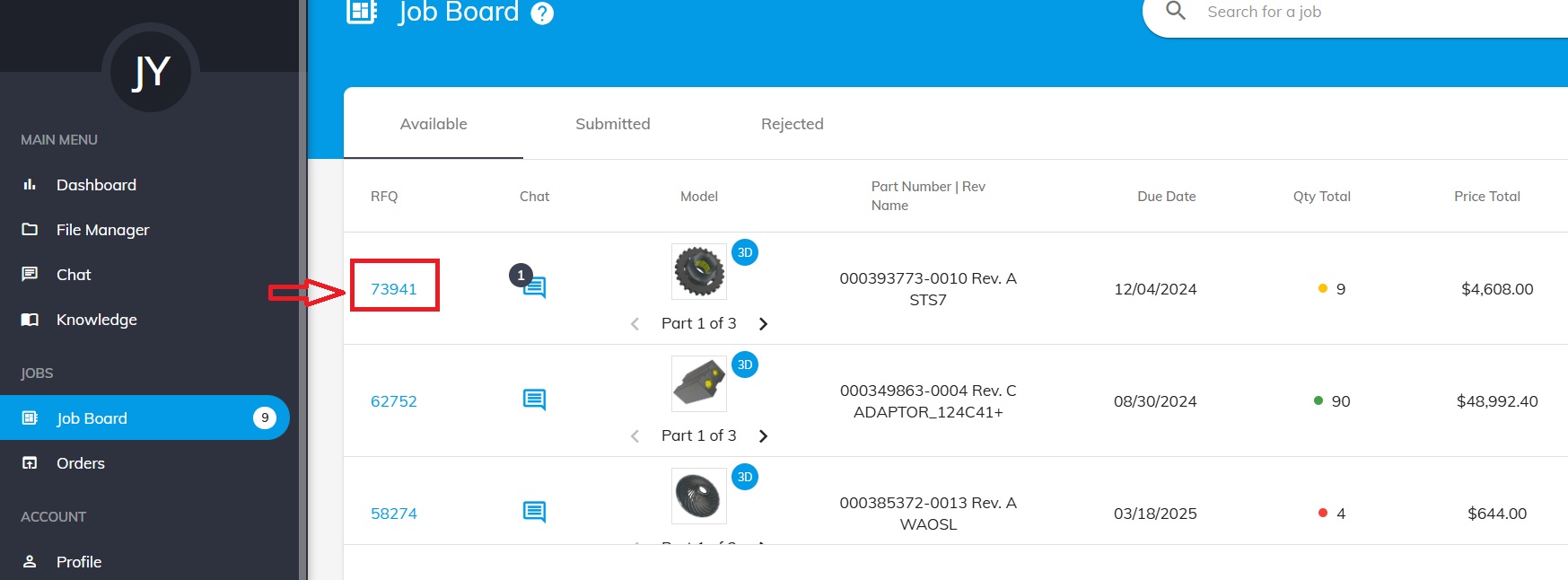
Here you will see all the information about the quote.
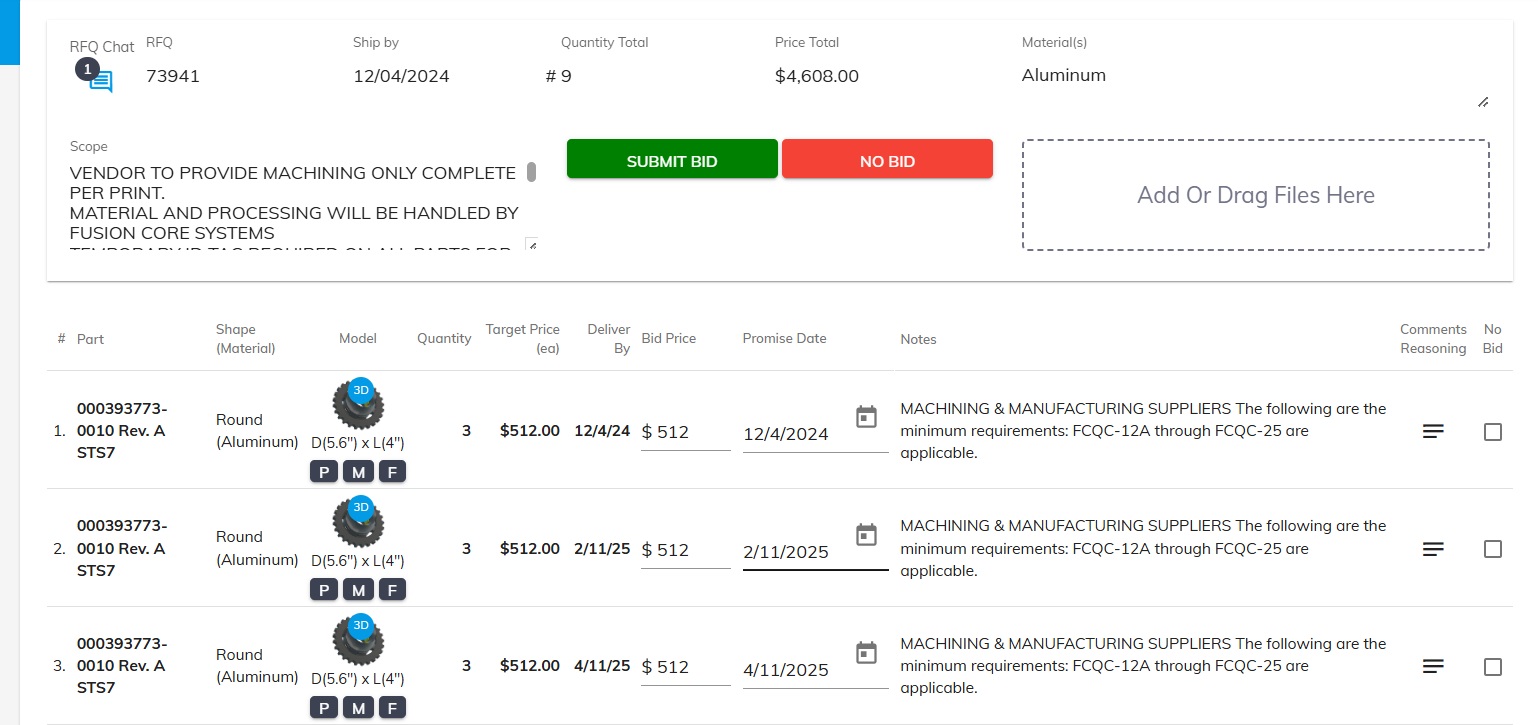
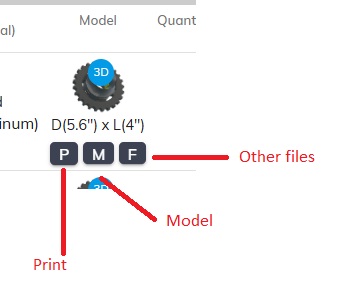
Download the files sent by the customer.
Make sure to read the messages from the chat (If available) , in case any additional info or notifications were provided, info that might influence the final price.
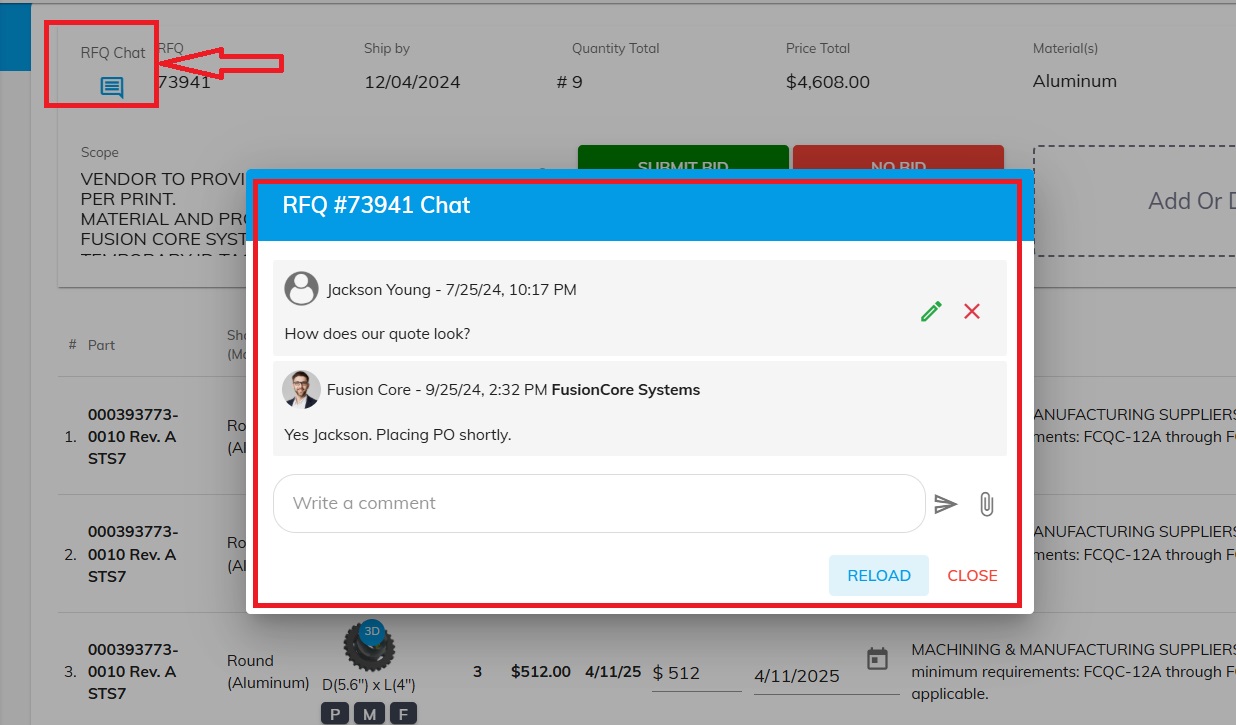
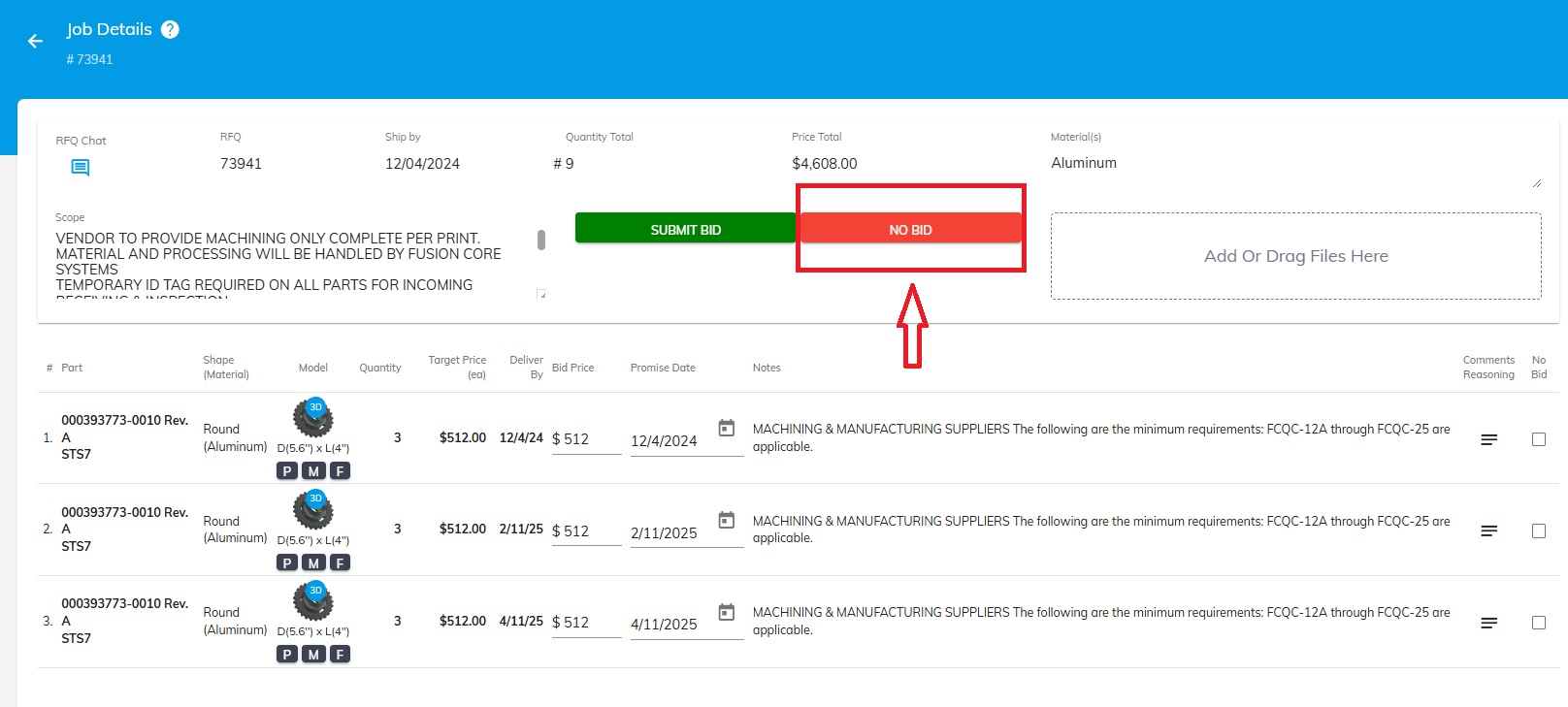
Submit the NO BID
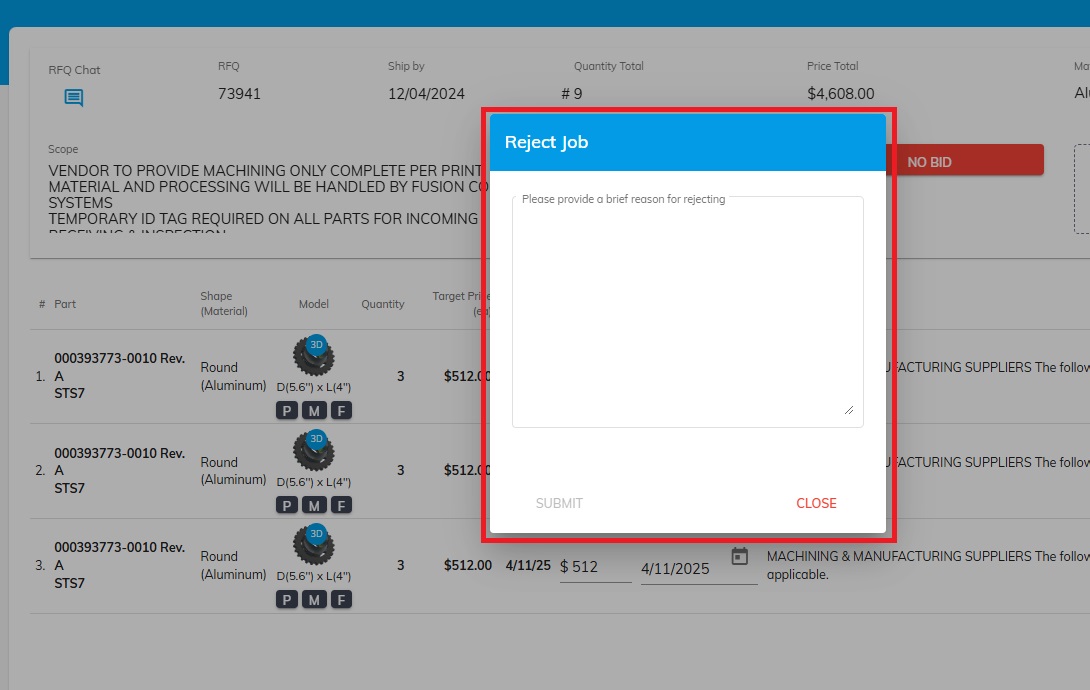
Once you click the “NO bid” button you will be asked to provide reasons for rejection.
Always provide the reasons for not bidding and click SUBMIT.
Was this article helpful?
Still stuck?
Ask Tessa in chatEmail supportTessa can point you to the right guide, or bring in a ShopXpert teammate.