
How to take a PO off Hold
How to change the status of a PO from "On Hold"
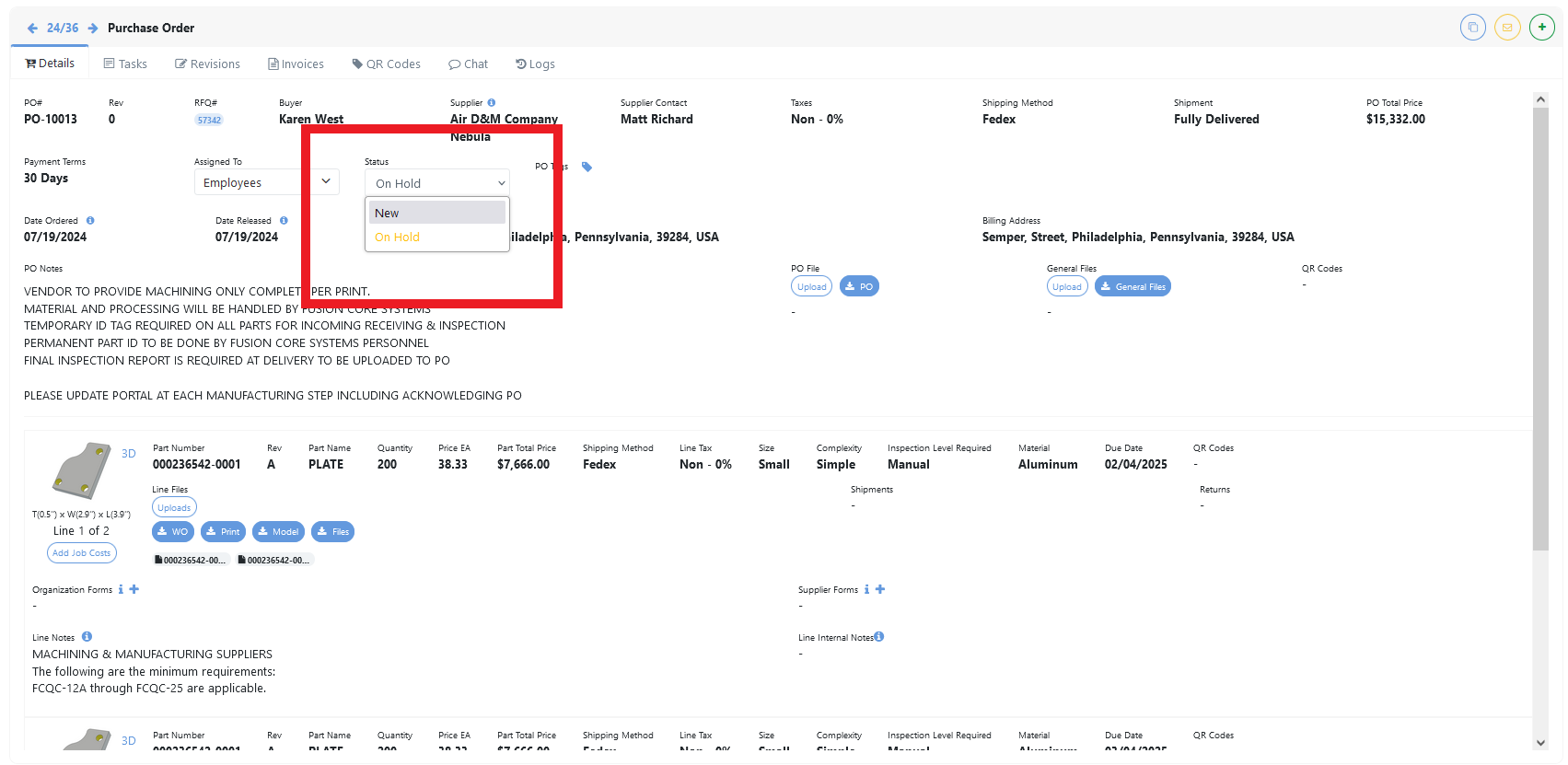
Press the Status button of the “On Hold” PO, and select “New”
This will open up a prompt that will give you the following options:
Add Lost Time – This is to add the time the PO has been On Hold to the Due Date of each line. This option also creates a new Revision.
Only Change Status – This will only change the status of the PO without affecting its Due Dates or Revision.
Dismiss – This cancels the status change.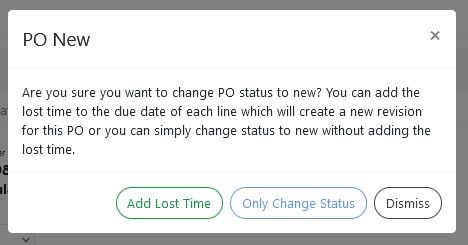
Was this article helpful?
Still stuck?
Ask Tessa in chatEmail supportTessa can point you to the right guide, or bring in a ShopXpert teammate.