
How To Track Supplier Certificates Expiry Date
Tracking supplier certificate expiration dates ensures compliance with quality, safety, and regulatory standards. It helps you stay updated on expiring certific
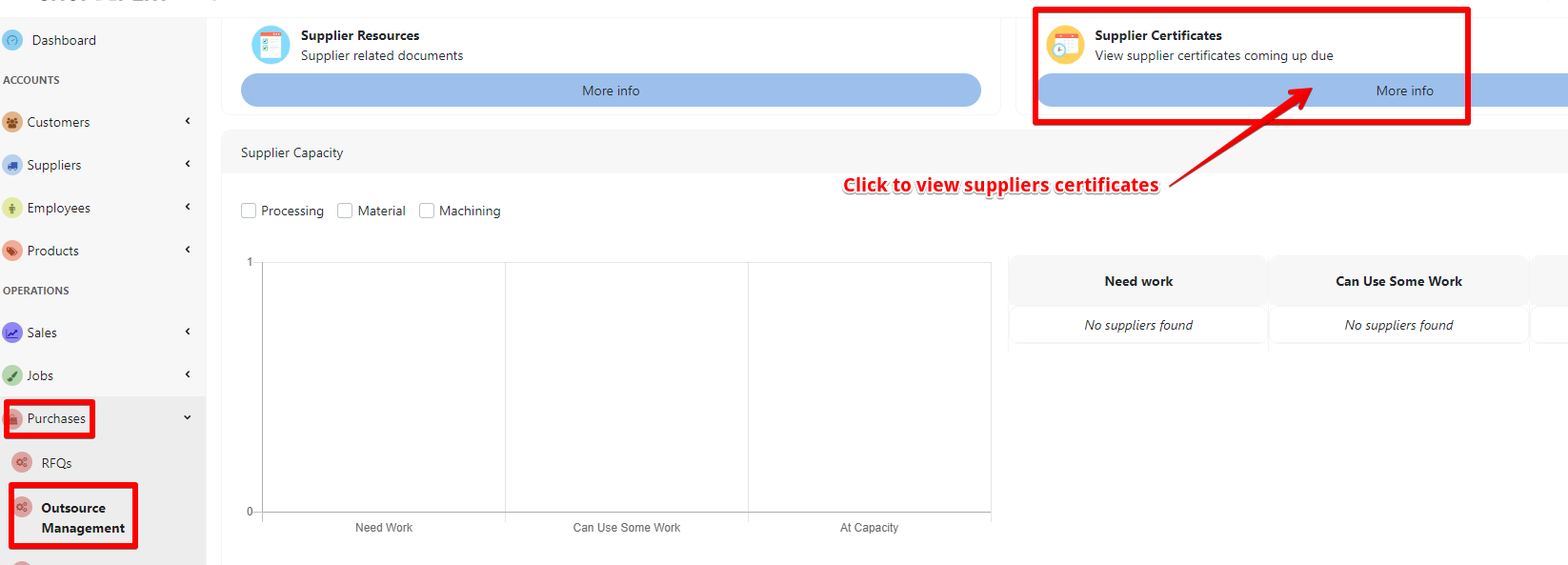
Access the Purchase Order page:
- Select “Purchase” and open the “Outsource Management” page.
- Under the Supplier Certificates, click on “More Info” button to view all supplier certificates
Navigate to the Certificates section, where details such as certification type, attached file, and expiration date are listed. To view the certification, simply click on the document under the Certificate File.
Make sure each certificate includes an expiration date to easily track when renewals are needed.
As the expiration date approaches, contact the supplier to request a renewal by clicking on the email icon, which allows you to generate a reminder email directly.

Once a new or renewed certificate is received, update the supplier’s profile with the new certificate details, including the new expiration dates.
Tessa can point you to the right guide, or bring in a ShopXpert teammate.