
How to Add Special Notes Per Employee
Adding special notes per employee is useful for tracking individual comments, performance reviews, or specific instructions. Here’s a guide on how to do it:
Access the Employees page:
- Select “Employees” and open the “Employees” page. In the employee management section, you will see a list of employees.
- Use the search bar or filters (e.g., by employee, team, position) to quickly find the specific employee whose information you want to edit.
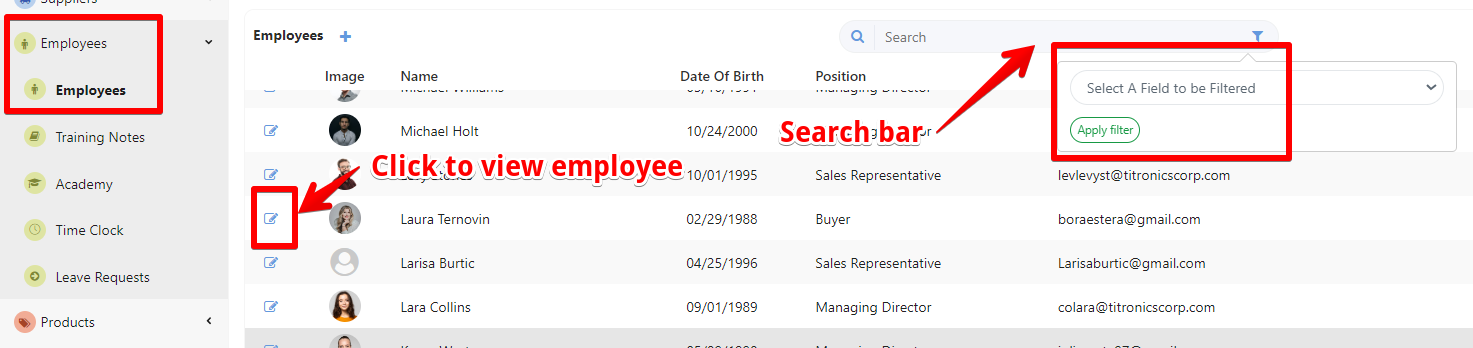
Locate the Notes Section
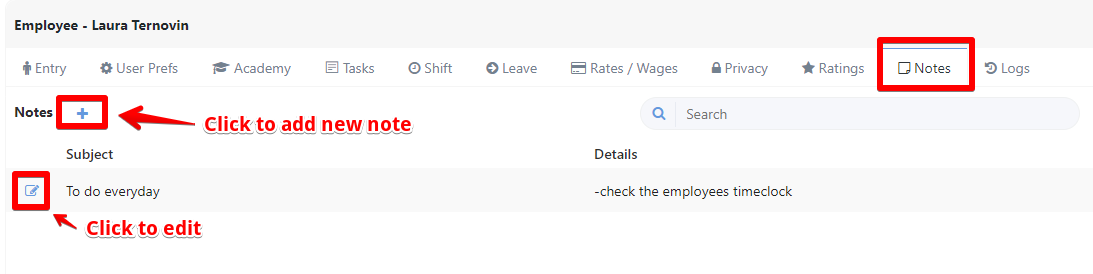
- After selecting the employee, you will be directed to a page displaying their details. Click on the Notes section. This area is specifically designated for adding and managing special notes or remarks for the employee.
Add the Note
- Click the “+” button to Add Notes.
- Type your special note in the provided text box. This could include comments on performance, specific instructions, reminders, or other information relevant to the employee.

- After entering the note, click “Save” to ensure it is recorded in the employee’s profile.
- You can also view, edit, or delete notes as necessary.
Was this article helpful?
Still stuck?
Ask Tessa in chatEmail supportTessa can point you to the right guide, or bring in a ShopXpert teammate.