
How to Verify and Approve a Course Test
Reviewing the results submitted by users to ensure accuracy and determine if they meet the required standards for passing.
Access the Academy page:
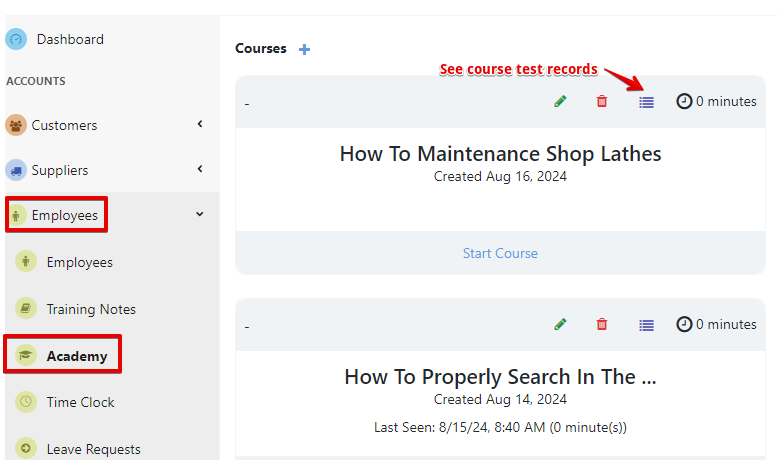
- Select “Employees” and open the “Academy“ page
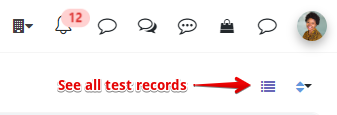
- Click on “see course test records” for a specific course or click “see all test records” to access all the results.
Review Test Responses:
Click on the “pencil” icon to open the submission and carefully review each answer provided by the user. Check for correctness based on the answer key or criteria set during test creation.

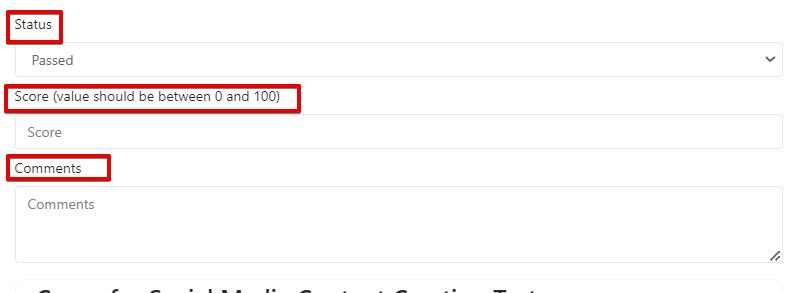
After reviewing the test, enter the score and any comments in the designated box, then update the status to “PASSED” or “FAILED”. When you are done, click to save the results.
Was this article helpful?
Still stuck?
Ask Tessa in chatEmail supportTessa can point you to the right guide, or bring in a ShopXpert teammate.