
How To Limit Access To Employees to Certain Info
Here's a step-by-step guide on how to manage the employee access to information
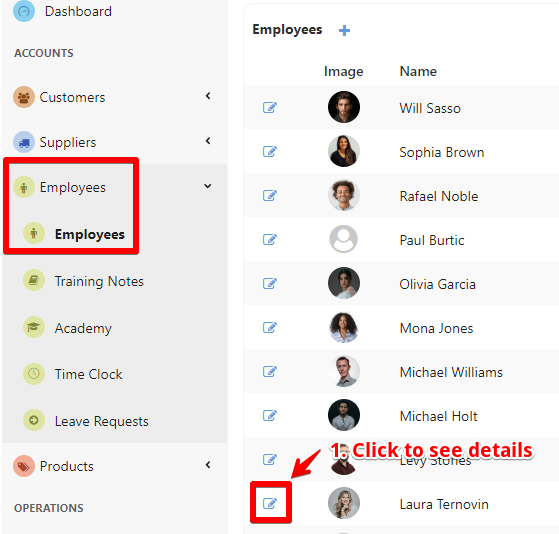
Access the Employees page:
- Select “Employees” and open the “Employees” page – click on the specific employee you want to limit access.
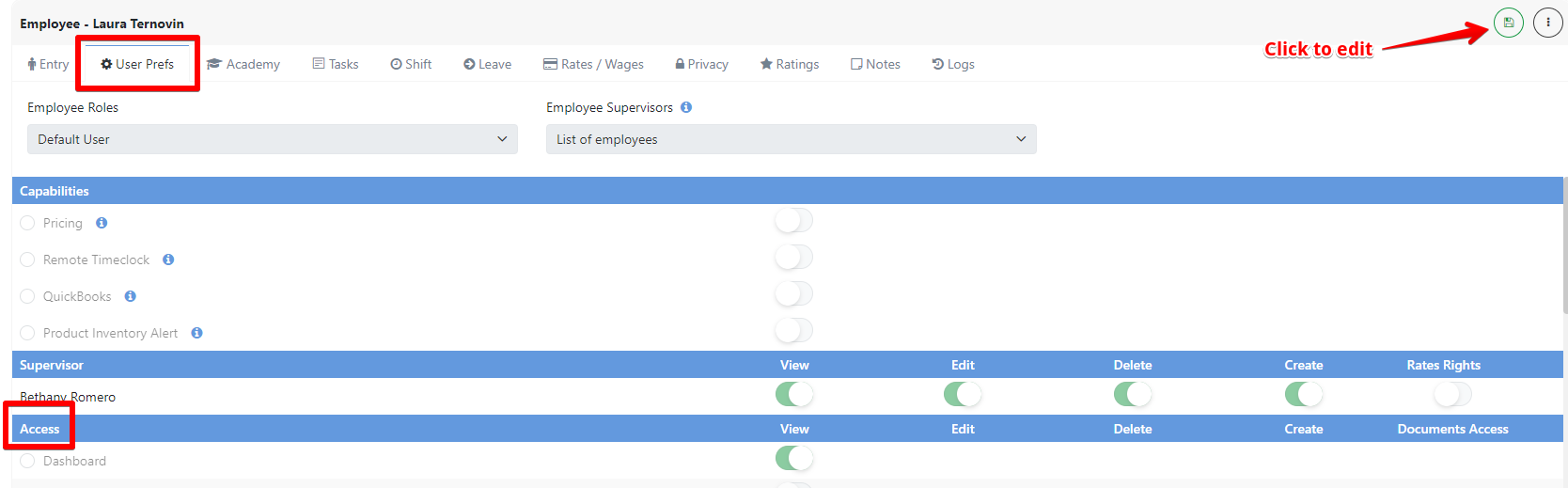
In the employee menu bar, select the “User Prefs” section to view details such as Capabilities, Supervisor, and Access. To edit the access section, click on the EDIT button.
On the access section, you will be able to turn on and off the access for the following accounts:
- CustomersSuppliers
- Employees
- Products
- Operations
- Sales
- Jobs
- Purchases
- Reports
- Tools
- Communication
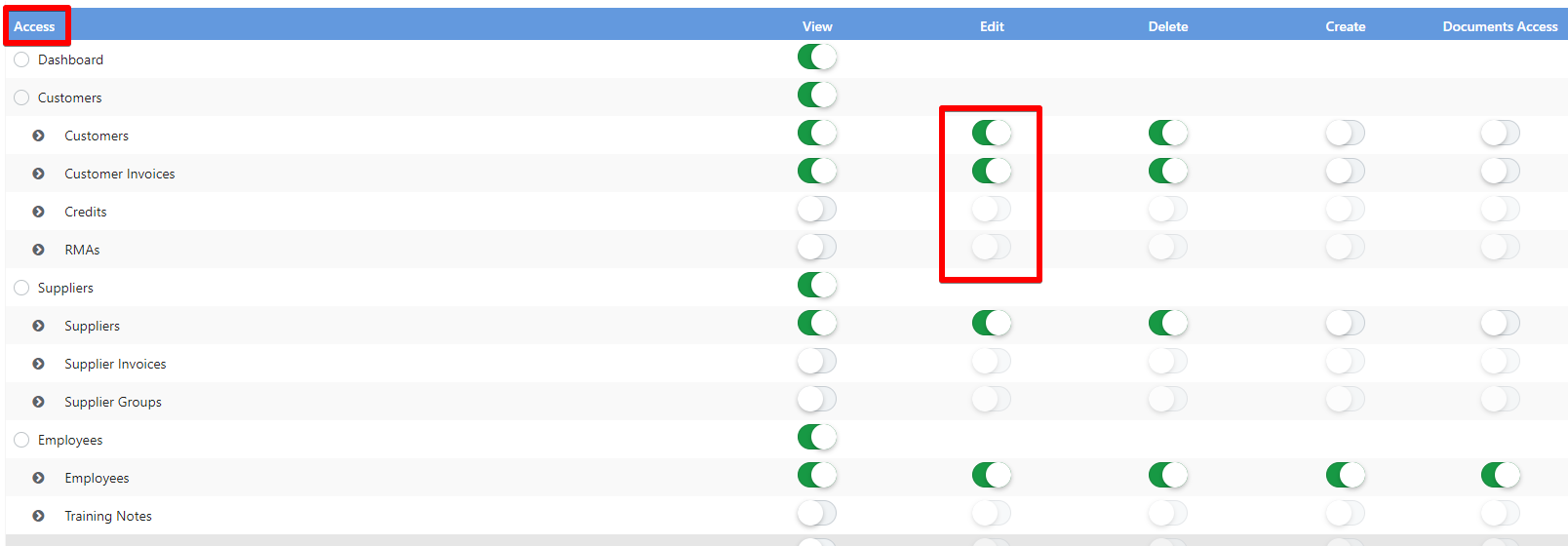
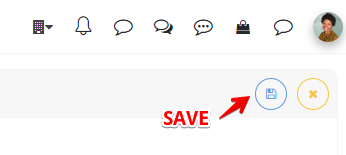
For each row, you can give or take access to: VIEW, EDIT, DELETE, CREATE, and DOCUMENT ACCESS. When you are done, don’t forget to save your changes.
Was this article helpful?
Still stuck?
Ask Tessa in chatEmail supportTessa can point you to the right guide, or bring in a ShopXpert teammate.