
How To View & Edit Rates & Wages
Step-by-Step Guide to Accessing and Modifying Employee Pay Rates
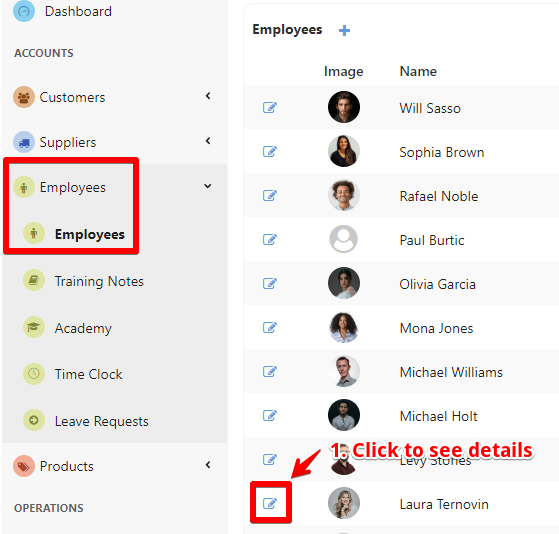
Access the Employees page:
- Select “Employees” and open the “Employees” page – click on the specific employee whose wage information you need to view or edit.
In the employee menu bar, select the “Rates/Wages” section to view details such as hourly wage and salary. To add a new rate, simply click the “+” button.

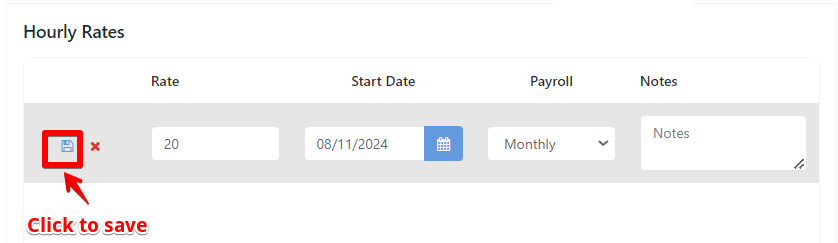
- Enter New Values: Input the new rate values, start date, and payroll. Be cautious when editing to ensure accuracy, as incorrect data can lead to payroll errors.
- Save Changes: After entering the new rates, save the changes.
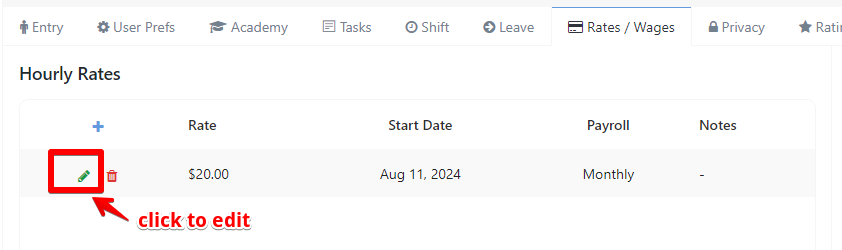
To edit a rate, simply click on the pencil icon. This allows you to make changes to the current rates.
Was this article helpful?
Still stuck?
Ask Tessa in chatEmail supportTessa can point you to the right guide, or bring in a ShopXpert teammate.