
How To Add New Employees
This is about knowing how to add new employees to ShopXpert.
Access the Employees page:
- Select “Employees” and open the “Employees” page
- Click on “+” to add a new employee
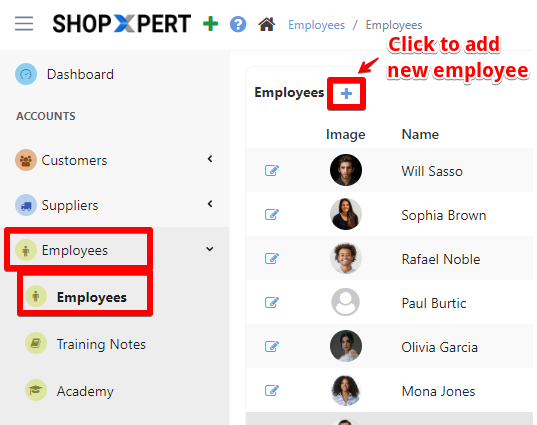
Enter Basic Employee Information – Fill out the required fields, including:
- Full Name
- Date of Birth
- Contact Information (email, phone number, Fax)
Enter Employment Details – Enter the professional details, such as:
- Position
- Hire Date
- Branch
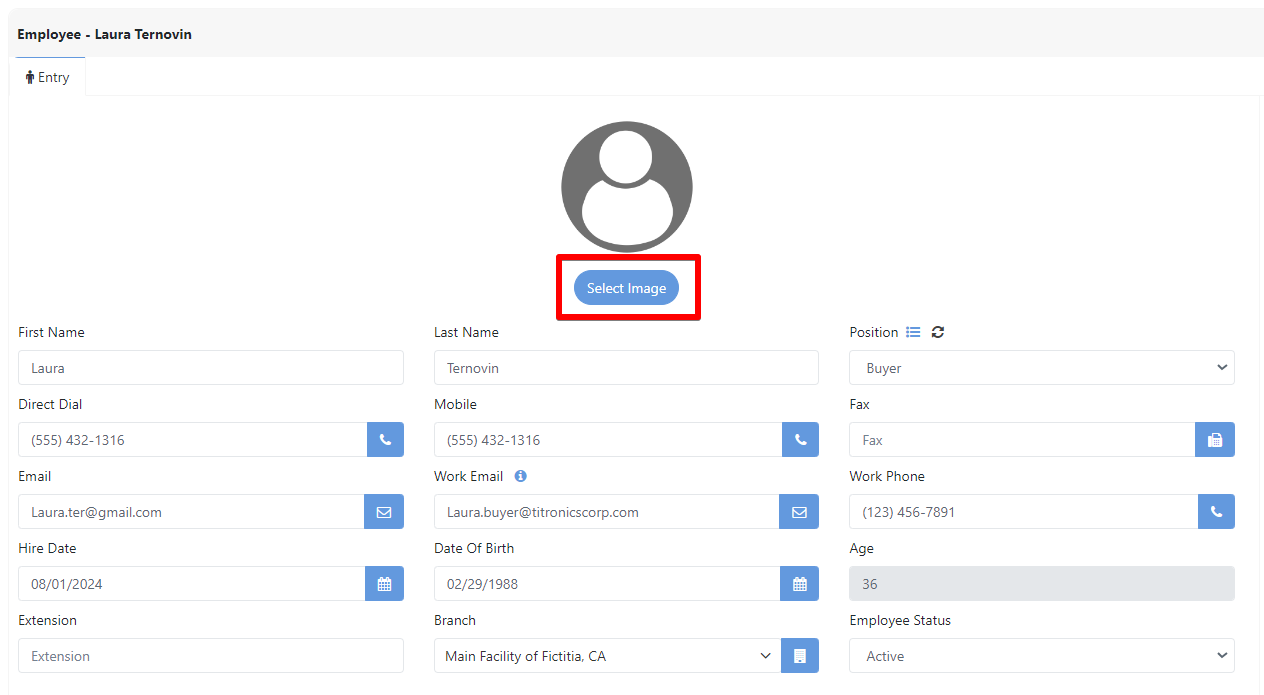
You can also add a picture of your employees. Simply click the “Select Image” button to add a picture and to make each profile more personalized.
Select the notifications for email and phone and click to create employee account. Double-check the entered information for accuracy, then click “Save” to finalize the addition of the new employee.
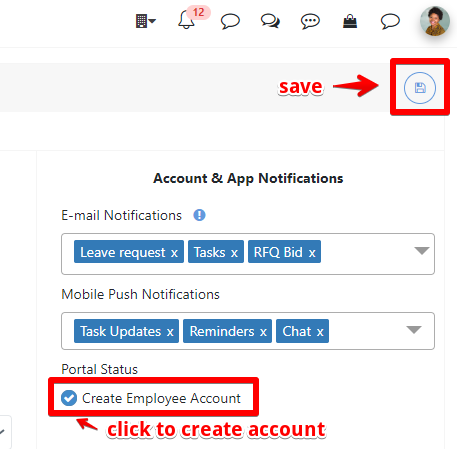
For more information about how to create an employee account click HERE.
Was this article helpful?
Still stuck?
Ask Tessa in chatEmail supportTessa can point you to the right guide, or bring in a ShopXpert teammate.