
How To Assign PIN's & Card Numbers To Employees
Here's how you can assign PINs and card numbers to employees effectively
Access the Employees page:
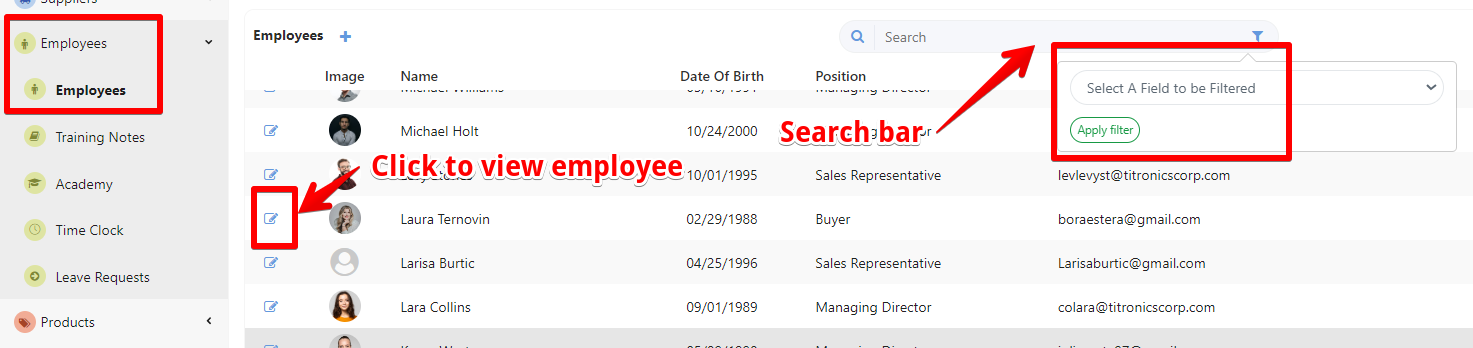
- Select “Employees” and open the “Employees” page. In the employee management section, you will see a list of employees.
- Use the search bar or filters (e.g., by employee, team, position) to quickly find the specific employee whose information you want to edit.
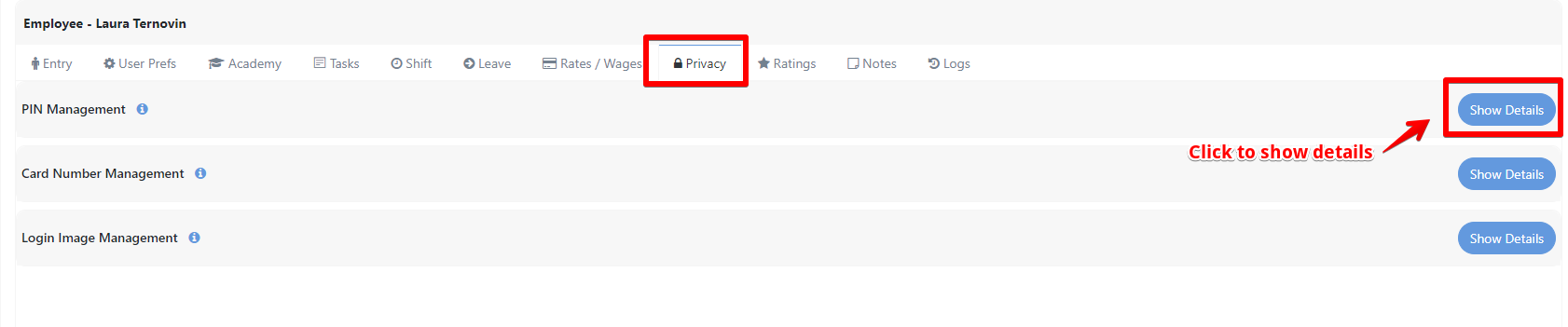
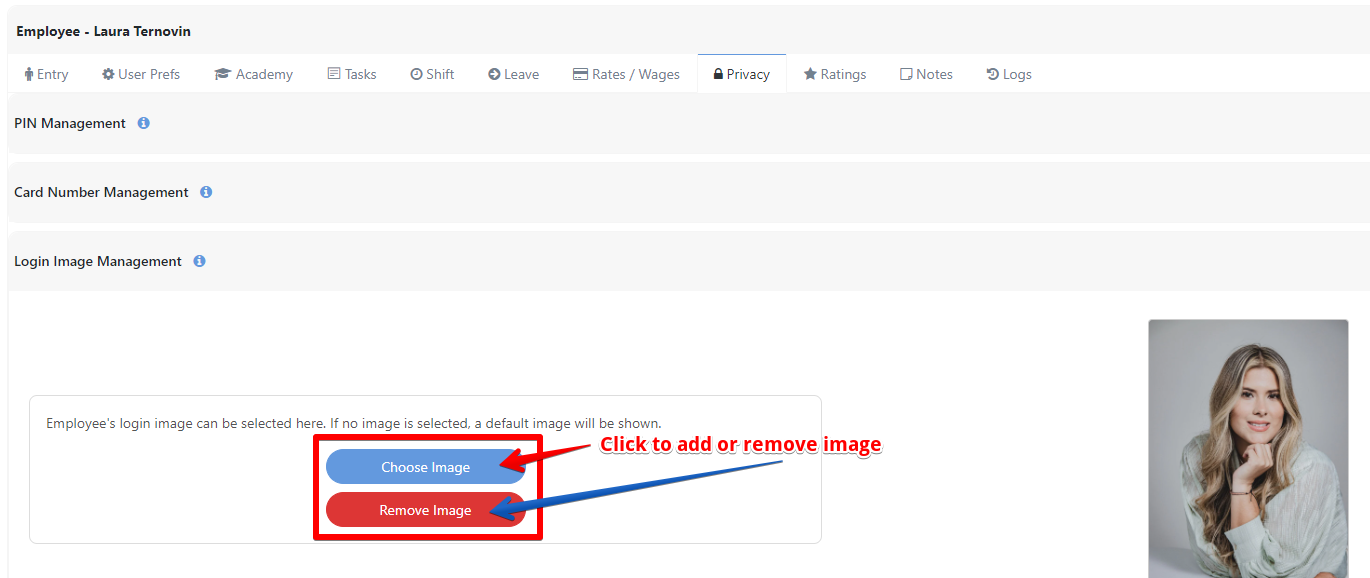
After selecting the employee, you will be directed to a page displaying their details. In the Privacy section, you can view and add the PIN code, card number, and login image. For each, just click on the “Show Details” button.
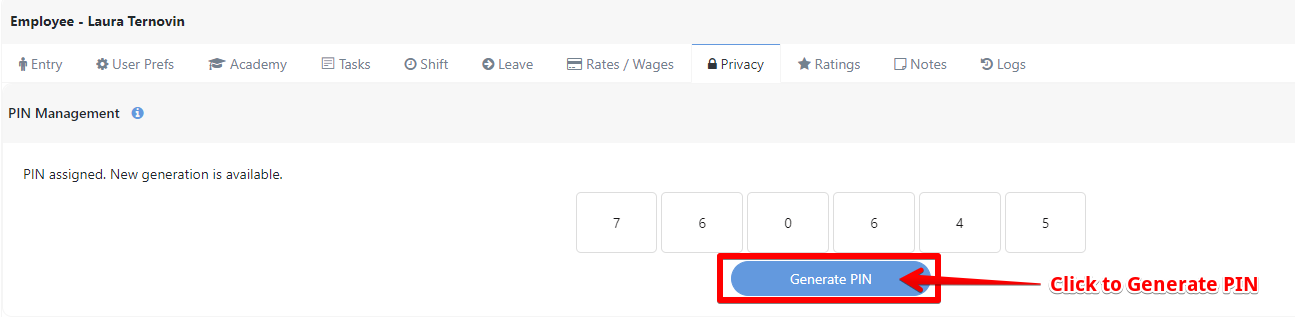
Generate PIN: Click the “Generate PIN” button to automatically create a new PIN for the employee.
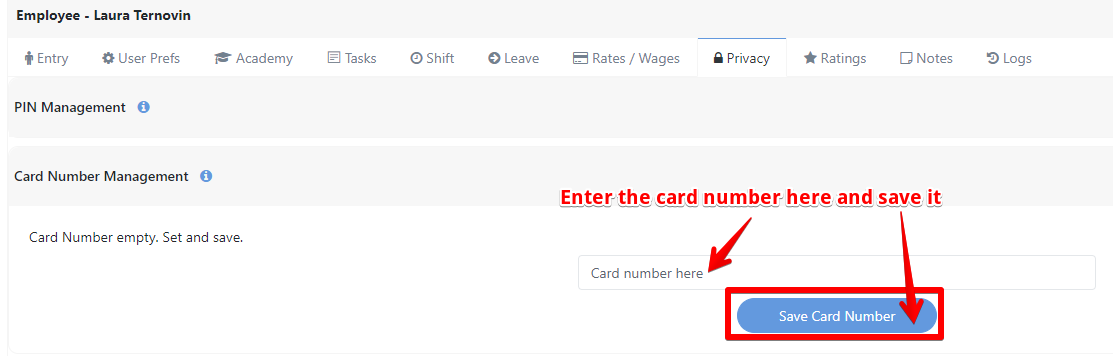
Add Card Number: In the card number field, input the unique card number assigned to the employee and click on “Save Card Number”
Add a Login image: Upload a new image by clicking on the “Choose image” button, or remove an image by clicking on the “Remove image” button.
Tessa can point you to the right guide, or bring in a ShopXpert teammate.