
How To Change Your Password
This is about what to do in case you want to change your password to something easier to remember.
If you need to change your current password, follow these steps:
1. Log In to Your Account: Start by logging in to your account using your current username and password.
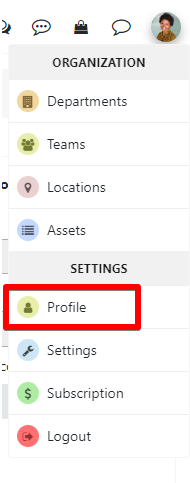
2. Go to Account Settings: Once logged in, navigate to your account settings or profile settings. You can find this by clicking on your profile picture.
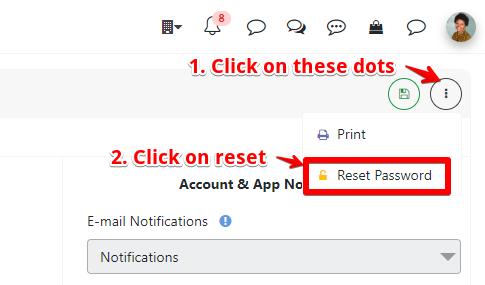
3. Find the Password Section: Within your account settings, there are 3 dots on the top right side of the page, and look for an option that says “Reset Password”. Click on it to proceed.
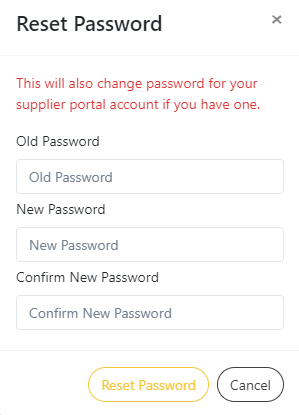
4. Enter Your Current Password: For security reasons, you’ll typically be asked to enter your current password before you can create a new one.
5. Create a New Password: In the provided fields, enter your new password. Make sure your new one is strong, using a mix of uppercase and lowercase letters, numbers, and special characters.
6. Confirm Your New Password: Re-enter the new password to confirm it. Ensure both entries match exactly.
7. Save Changes: Once you’ve entered and confirmed your new password, click on the “Reset Password” button to finalize the change.
8. Log In with Your New Password: You can log back in using your new password.
Tessa can point you to the right guide, or bring in a ShopXpert teammate.