
How To Restrict Access to Training Notes Per Department
Restricting access to training notes for each department to ensures that employees only have access to the information relevant to their roles.
To restrict access for a training note go to Employees and choose Training notes.
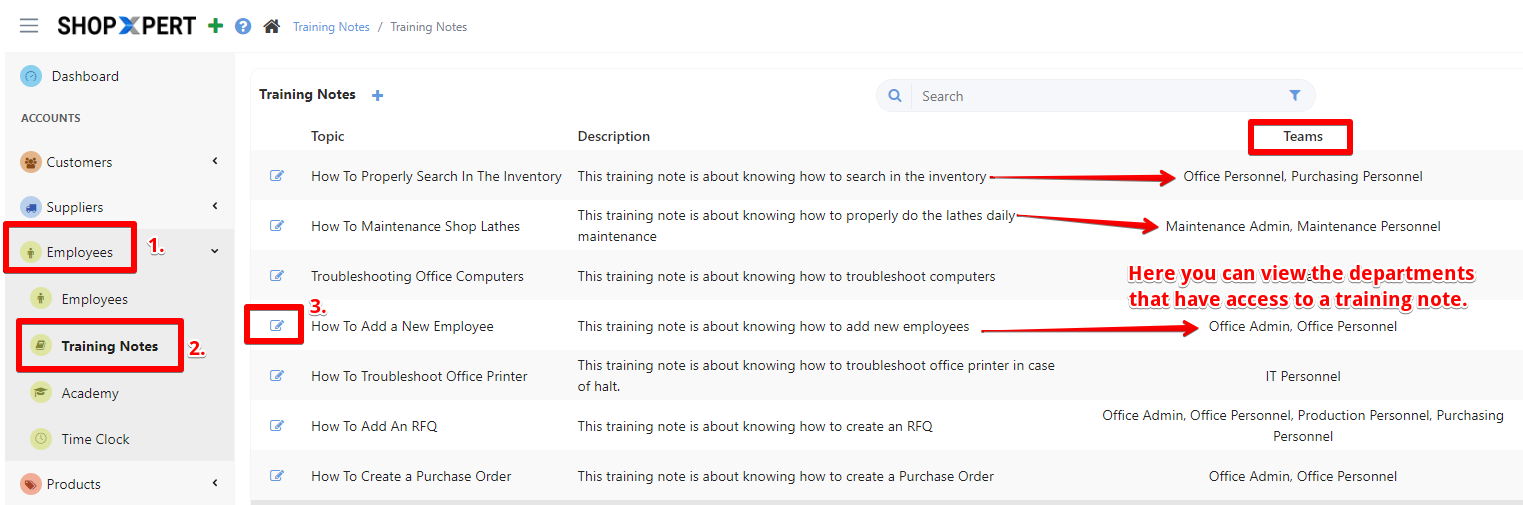
Select the specific training note and click EDIT.
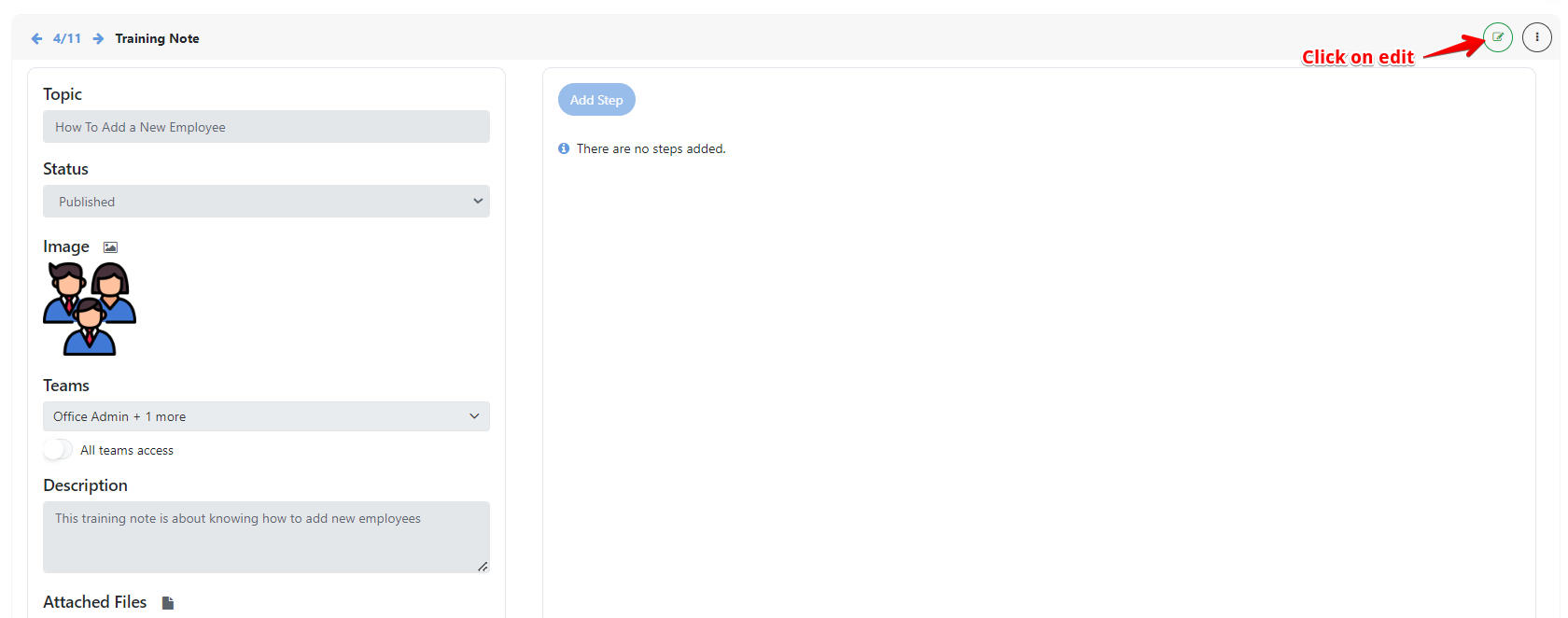
On the left side of the training note, look for an option to manage access or permissions. This will be labeled as “Teams”.
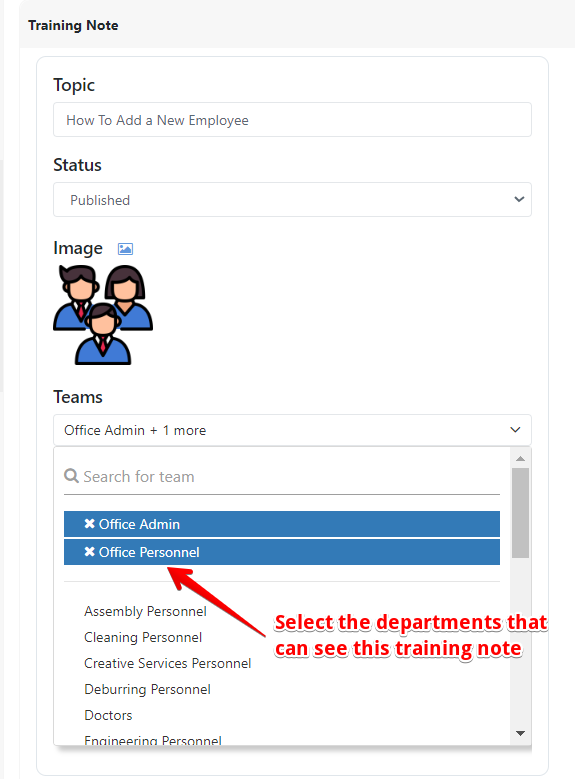
Now you can set Restrictions Per Department: Within the access settings, you should see an option to assign permissions by department. Select the departments that should have access to the training note. You can easily choose them from a list or search them manually.
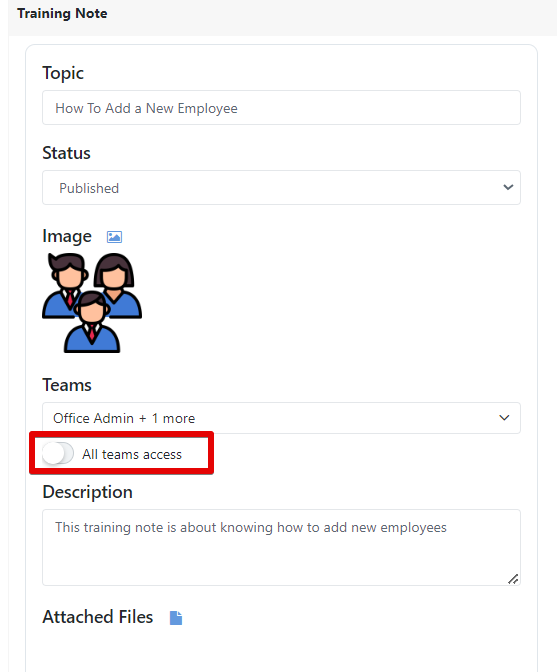
- You can also select the option to give access to all the teams.
After you have selected the departments you want, click on SAVE. 
Tessa can point you to the right guide, or bring in a ShopXpert teammate.