
How To Manage App Notifications For Each Employee
Managing app notifications for each employee involves configuring the types of notifications they receive, based on their roles and preferences. Here’s a step-b
Access the Employees page:
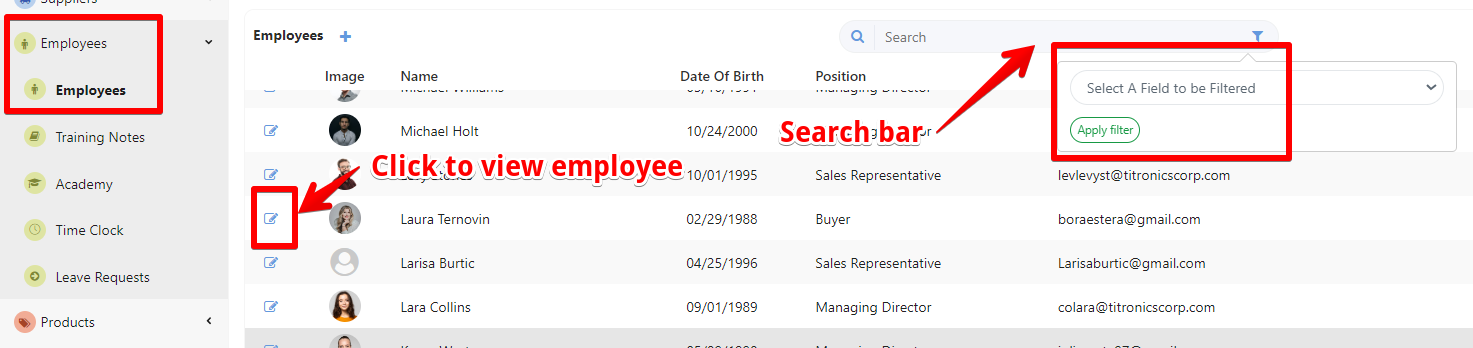
- Select “Employees” and open the “Employees” page. In the employee management section, you will see a list of employees.
- Use the search bar or filters (e.g., by employee, team, position) to quickly find the specific employee whose information you want to view or edit.
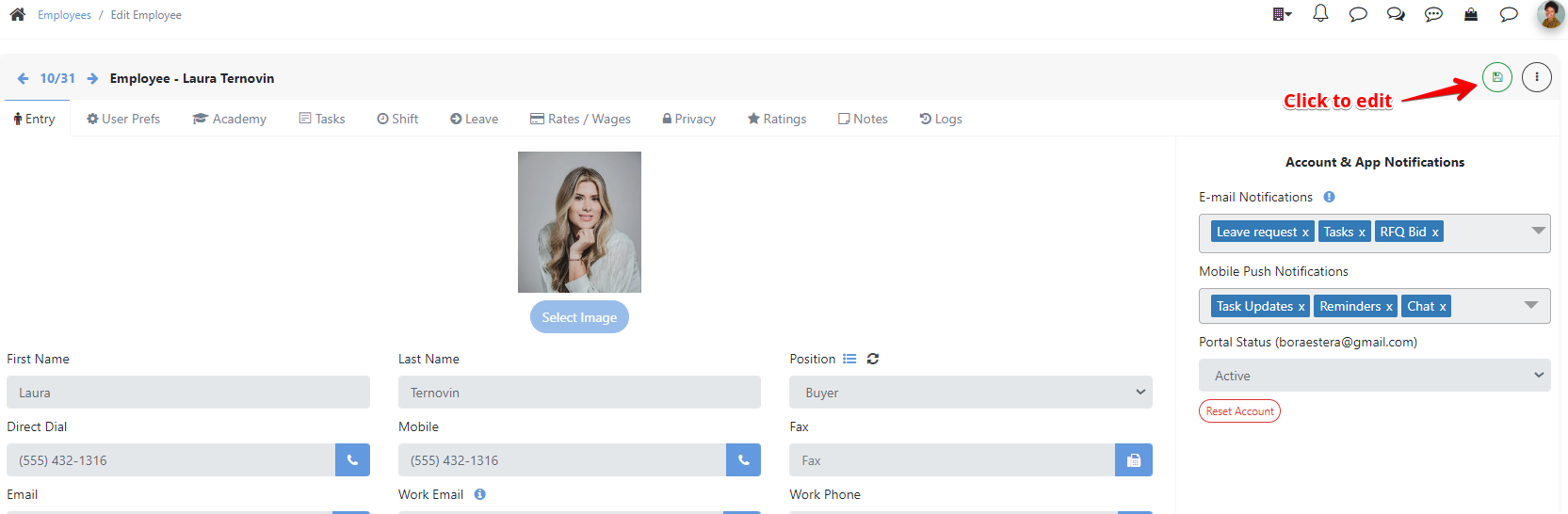
Locate the Notification Settings section, you can find it on the right side of the entry page of the employee profile. Click on the Edit button and choose the notification you want.
Customize Notification Preferences
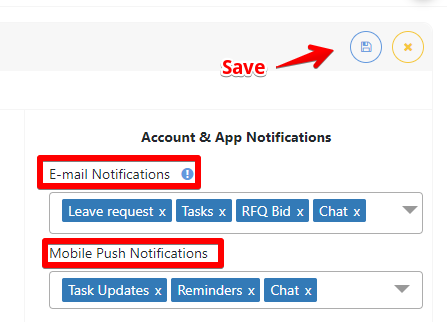
- Select Notification Types: Choose the types of notifications the employee will receive (Reminders, Leave request, Tasks, Chat, RFQ Bid).
- Choose Delivery Channels: Specify how the notifications will be delivered—via email or push notifications on their mobile device.
Once you’ve adjusted the preferences, save the changes to ensure the employee receives notifications according to the configured settings.
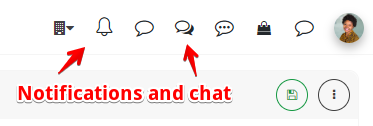
All notifications will be also displayed directly next to the employee’s profile picture in the notification section for easy access and visibility.
Tessa can point you to the right guide, or bring in a ShopXpert teammate.