
Reports in ShopXpert: finding reports and filtering them
How to open Reports in the left menu, use the search and filters on a report, and pick a useful report to start with.
In ShopXpert, reports live in the left menu. Open the Reports section, pick a group, then choose the report you want.

The Reports section has these groups and reports:
| Group | Reports |
|---|---|
| Sales Reports | Sales Orders, Open Invoices |
| Purchases Reports | Purchase Orders, Supplier Invoices |
| Customers Reports | Sales By Customer |
| Suppliers Reports | Purchases By Supplier |
| Jobs Reports | Job Status, Net Margin, Asset Usage, Activity |
| Employees Reports | Time Management, Timeclock By Employee |
| Other Reports | Task Report, Vending Report, Inventory Report, Visitor Logs |
Search and filter a report
Every report has filters. Once a report is open, set the date range and filters in the Search panel to the right of the report name.
You will see a period or date range, a Search box, and a filter icon (a funnel). Type in Search to find rows in the current report. Click the filter icon to narrow the report further. Choose a field to filter, then click Apply New Filters. You can use more than one filter at once.
To see the results, click Run Report or Apply New Filters, depending on which control the report shows.
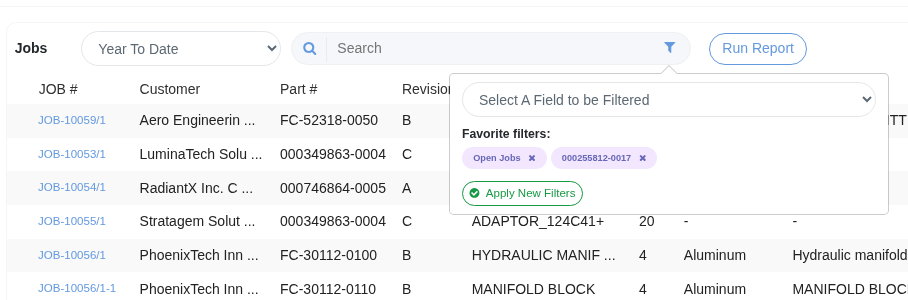
After you apply a filter, you can clear it with Clear Applied Filters, and keep a filter set with Save To Favorites.
A good place to start: Sales Orders
A useful place to start is Sales Reports in the left menu, then Sales Orders.
Sales Orders shows your orders for the period you choose, with charts for order status and top customers, plus a table of the orders themselves. Choose Year To Date, then click Run Report.
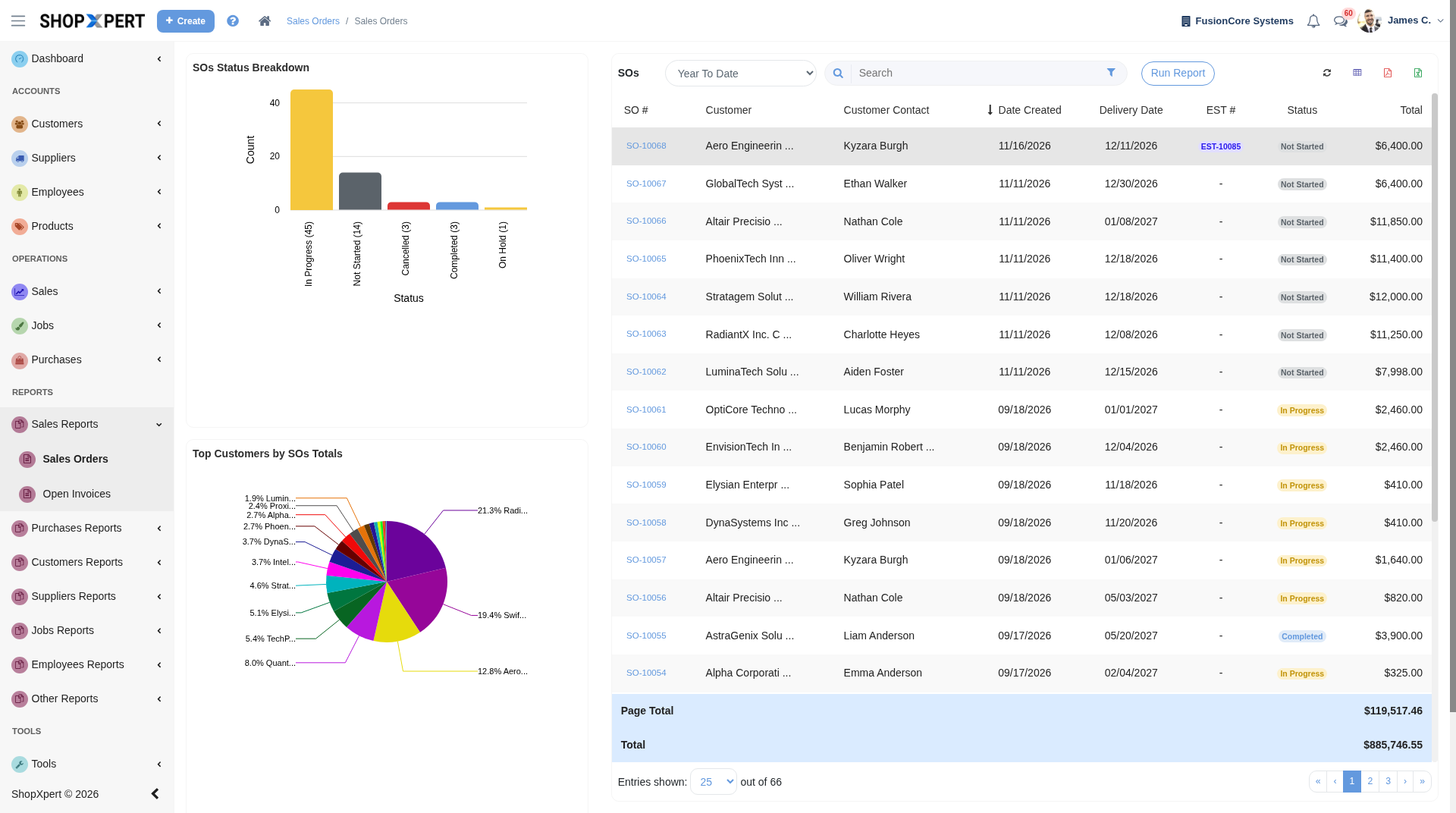
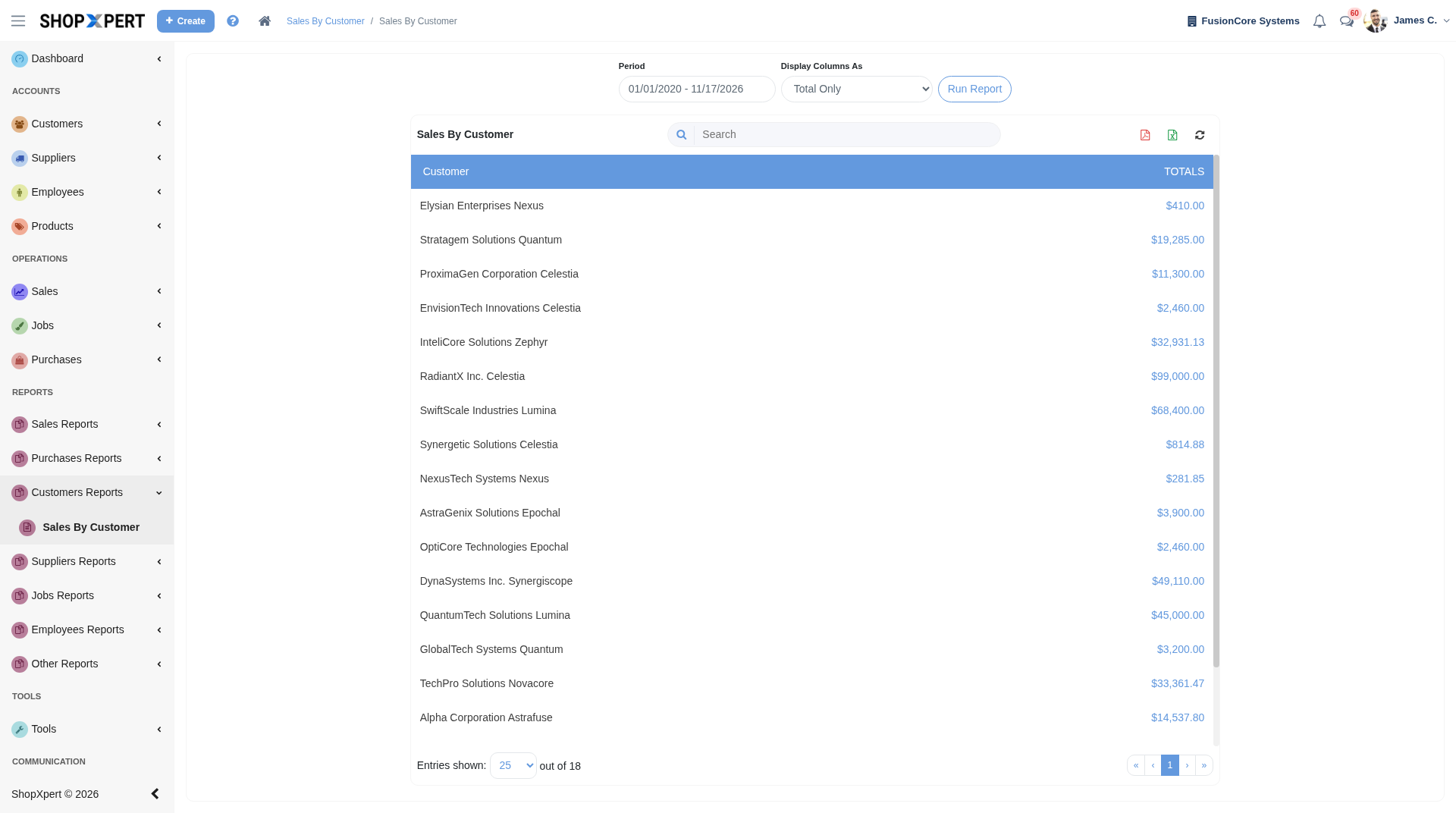
If you want totals by customer instead, open Customers Reports and choose Sales By Customer. That report is a table of sales totals for each customer in the period you choose. Set the Period, choose how columns are displayed, and click Run Report. Use Search if you need to find a specific customer.
Report ideas by role
Owner
- Sales Orders, for order volume and status charts
- Sales By Customer, for sales totals by customer over a date range
- Open Invoices
- Net Margin
- Inventory Report, for live stock levels
Shop manager
- Job Status, Asset Usage, and Activity
- Task Report
- Vending Report, for who took which item, and for which job
- Inventory Report, for stock at each location
- Time Management and Timeclock By Employee
Sales
- Sales Orders and Open Invoices
- Sales By Customer
Purchasing
- Purchase Orders and Supplier Invoices
- Purchases By Supplier
- Inventory Report, for current stock
- Vending Report, for consumption by location, employee, and job
Access to reports
If someone on your team cannot see Reports, check their access. In employee access settings, Reports is its own row. You can turn view, edit, delete, create, and document access on or off. See How To Limit Access To Employees to Certain Info.
Related help
- Distributor onboarding, step 14: Use the reports and save filters, covering the Vending Report and Inventory Report
- Inventory Management, which also describes the Vending Report, Inventory Report, and expense reports
If you would like us to walk through the reports that fit your shop, book a demo.
Tessa can point you to the right guide, or bring in a ShopXpert teammate.